Q4 — October through December — is when the year’s online sales pile up, and when your Shopify to QuickBooks Online integration gets its hardest test. By US Census figures, those three months brought in $365.2 billion of the $1,233.7 billion in US retail e-commerce sales in 2025 — about 30% of the whole year in one quarter. This year the forecasts point higher again, and the season is starting sooner: Adobe expects $95.8 billion in US online spending in October 2026 alone. More orders mean more payouts, more refunds, more sales tax and more questions about where the money went — and every one of them has to reach QuickBooks Online. If your integration isn’t ready before the rush, Q4 is when you find out. WeIntegrate gets you there in about 10 minutes, with every order recorded instantly and every payout turned into a real Bank Deposit automatically, to the penny.
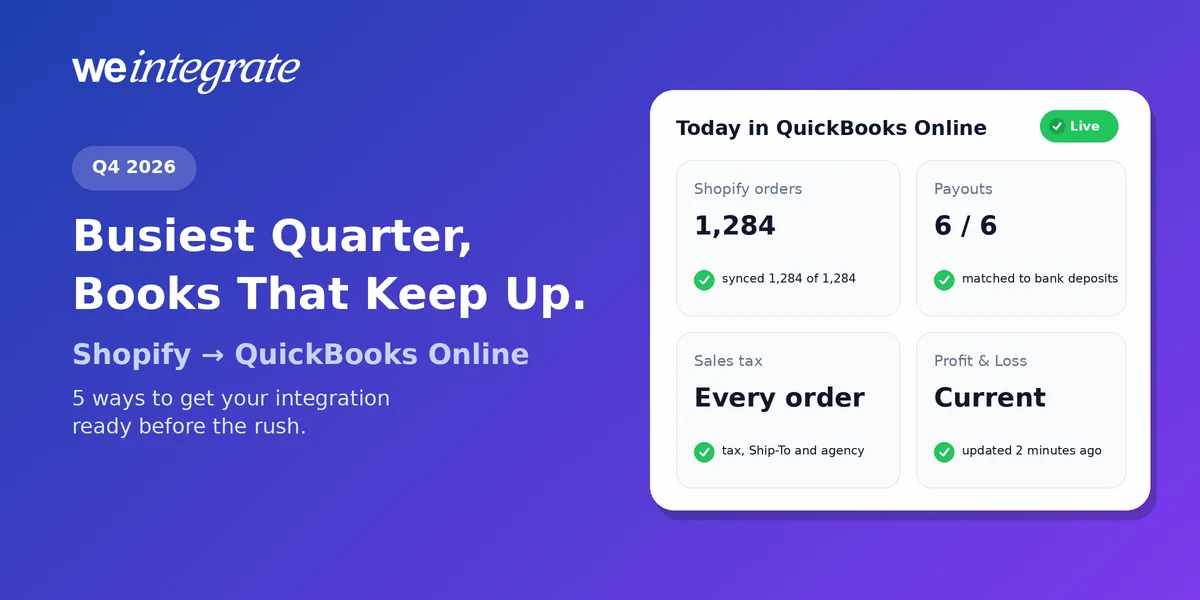
Busiest quarter, current books — every Shopify order in QuickBooks Online the moment it happens, and every payout a real bank deposit, reconciled to the penny.
Start Your Free TrialWhy Q4 Puts Your Books Under the Most Pressure
The forecasts for this year’s season agree: it’s growing, and most of that growth is online:
- Online is outpacing retail overall. Deloitte’s September 10 forecast has US holiday e-commerce growing 7.5% to 8.4% for November through January, against 4.0% to 4.8% for retail as a whole.
- Nonstore sales lead the growth. Bain & Company, on September 3, forecast nonstore sales up 9% in November and December, driving about 60% of the season’s sales growth, while in-store sales grow 2.5%.
- The season starts early. Adobe’s September 28 forecast puts October online spending up 8% on last year, and expects $275.1 billion online in November and December, up 6.7%.
For a Shopify store, that means the weeks with the most orders are also the weeks with the least time to fix anything. Whatever your books can’t handle in October, they’ll handle even worse in December.
Still on Spreadsheets? October Is the Perfect Time to Switch
If you’re copying Shopify orders into QuickBooks by hand, or importing a spreadsheet at the end of each week, Q4 multiplies that work at exactly the moment you have the least time for it. Every extra order is another row to type, another refund to chase and another payout to piece together.
Switching now, before the peak weeks, is the easy way to do it. Setup takes about 10 minutes, the 15-day free trial needs no credit card, and you’ll have weeks of real orders flowing into QuickBooks Online before the busiest days arrive. From then on, nobody types a sale again: every order and refund is recorded for you the moment it happens, and every payout becomes a real bank deposit automatically.
On a Lump-Sum Integration? You’re Looking at Old Numbers
Plenty of integrations still collapse a day’s or a week’s worth of orders — a hundred, a thousand — into one summary journal entry. It only looks tidy until a Shopify payout doesn’t match your bank, there’s no individual sale to trace, and your bookkeeper spends month-end hunting for the difference. As we showed in Phantom Sales, a summary has a total but no story.
In Q4 the bigger cost is time. A summary posted tonight, or at the end of the week, means today’s decisions — reordering a best seller, raising an ad budget, checking cash before a supplier payment — run on yesterday’s or last week’s numbers. That’s the opposite of financial visibility.
WeIntegrate doesn’t hold orders back, and never summarizes:
- Every order, instantly, as a real transaction. Each Shopify order becomes its own Sales Receipt (QuickBooks’ record of a sale paid on the spot) or Invoice (the bill you send a customer on terms) the moment it’s placed — with nothing hidden inside a summary.
- Every payout, a real Bank Deposit. Each Shopify payout is recorded automatically as a real QuickBooks Online deposit made of the actual orders, with the fees, refunds, chargebacks and disputes each on their own line, equal to what reached your bank.
- Sales tax that’s right from the first order. The details tax depends on travel with every sale, so your QuickBooks sales tax reports agree with Shopify.
- Reports that are current today. Your Profit & Loss, Balance Sheet and what customers owe you reflect this morning’s orders — not the end of the week, and not after month-end close.
5 Tips to Get Your Integration Q4-Ready in 2026
1. Choose Your Plan for Your Peak Month, Not Your Average One
Look at your busiest month last year, add this year’s growth, and compare it with your plan’s monthly order limit: 500 on Startup, 1,000 on Basic, 2,500 on Growth, 5,000 on Professional and 10,000 on Enterprise. If you’re close, move up before the rush rather than during it. You can upgrade at any time, and if you do go over, WeIntegrate lets you know and any overage is prorated against your current plan. Compare the plans.
2. Check Your Customer and Item Matching Before New Products Launch
Q4 brings gift sets, bundles and seasonal products, and each needs a home in QuickBooks Online. Before they go live, check that their SKUs line up with your QuickBooks items — a messy SKU affects everything that depends on it — or that WeIntegrate is set to create new items automatically. Do the same for customers: matched individually so you can see who your repeat buyers are, or rolled into one default catch-all customer (bulk) if channel totals are all you need. For the exceptions that exact matching can’t handle, Advanced matching rules are now in preview with select customers.
3. Make Every Payout a Real Bank Deposit
Peak season means more payouts, and every one should become a real Bank Deposit in QuickBooks Online that matches your bank feed (the transactions QuickBooks pulls in from your bank) with a click. Check that both QuickBooks settings point to Undeposited Funds — QuickBooks’ holding account for money not yet in the bank: Sales Default → Deposit Payment To, and Refunds Default → Refund From. Here’s why both matter, and the Deposit Payment To guide walks through the first. Startup creates those deposits once a week, Basic once a day, and Growth and up several times a day. Growth and up also get the full three-way Shopify Payout to QuickBooks Online Bank Deposit Report, which turns any payout that doesn’t add up amber and points to the exact order or fee responsible; Basic includes a basic version.
4. Get Sales Tax Right on Every Order, Not Just in Total
More orders across more places means more sales tax to file when the quarter closes. With WeIntegrate, every order brings its own tax detail into QuickBooks Online: which lines were taxable, the address it shipped to, and exactly how much tax the customer paid, filed under the tax agency you pay it to. That’s what keeps QuickBooks’ Sales Tax Liability Report ready when you are. Tax Shopify collects and pays to the state for you, such as marketplace facilitator tax, can go to its own liability account (money you’re holding for someone else) on Professional and up. Selling outside the US? The Canada, United Kingdom, Australia and Global editions carry the exact GST, HST or VAT collected on each order. More on Shopify sales tax in QuickBooks Online.
5. Be Ready for Returns, Chargebacks and the Odd Exception
A busy quarter is followed by a busy returns season. Make sure each return becomes a real Refund Receipt or Credit Memo tied to the sale it reverses, and that chargebacks and disputes — when a customer disputes a card charge — show up on their own line in the payout’s deposit, even weeks after the sale. For orders that shouldn’t reach QuickBooks at all, such as test orders or wholesale orders you account for separately, Conditional Sync Rules on Growth and up keep them out without turning anything into a lump sum.
Financial Visibility, Every Day of Your Busiest Quarter
Get these five things right in October and your books keep pace with your store through December. Every order is a real transaction the moment it happens. Every payout becomes a real deposit that matches your bank. Every sale carries its own sales tax. So on your busiest day you can open QuickBooks Online and see exactly how the quarter is going — and when the year ends, month-end close is a quick check, not a hunt.
WeIntegrate supports QuickBooks Online in the US, Canada, the United Kingdom and Australia, plus the Global edition.
Get Started
Start your free 15-day trial and connect Shopify to QuickBooks Online in about 10 minutes — every Q4 order a real transaction the moment it happens, every payout a real bank deposit, reconciled to the penny before the rush begins. No credit card required.
See Also
- The Lump-Sum Myth: Every Shopify Order Belongs in QuickBooks Online — why every order should be its own real transaction.
- Phantom Sales: Are Your QuickBooks Online Sales Built From Payouts? — what goes missing when sales start at the payout.
- Month-End Close That’s a Breeze — No Detective Work Required — real transactions make month-end a three-step look.
- Sync Shopify Refunds to QuickBooks Online Automatically — Real Refund Receipts, Credit Memos, and Reconciled Payouts — real Refund Receipts and Credit Memos for returns season.
- How to Reconcile Shopify Payments in QuickBooks Online — Automatically, With Zero Manual Matching — zero manual matching.
- More Control, Still Simple: Advanced Matching Rules Now in Preview — fine-grained customer and item matching.