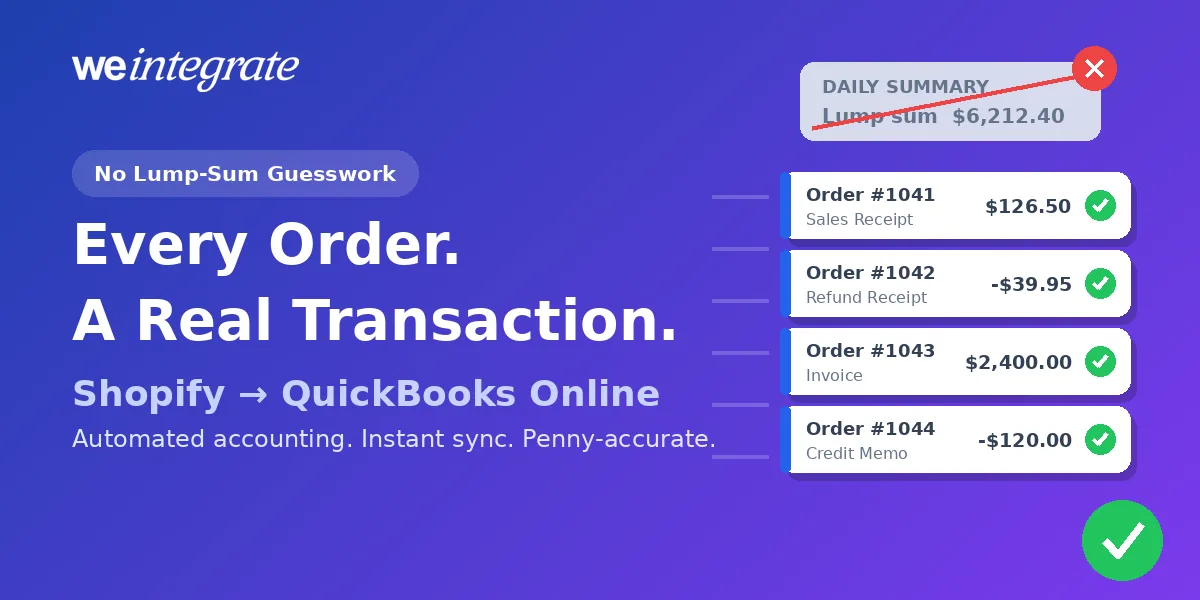
Saturday was a great day: 140 orders, a handful of returns, one big wholesale order. Now open QuickBooks Online and look for them. With a lot of integrations, you won’t find 140 orders — you’ll find one line that says something like “Shopify sales — $6,212.40.” That’s a lump sum: an aggregated, summary journal entry that rolls a whole day (or week) of orders into one total. No order numbers. No customers. No sign of which return went where. Whether you sync Shopify orders to QuickBooks Online as a daily or weekly lump sum or as real, individual orders decides whether your books can actually answer your questions — and WeIntegrate gives you the detail: every order, its own real QuickBooks transaction, the moment it happens.
Every Shopify order in QuickBooks Online the moment it's placed — as a real transaction you can open, not a lump sum you have to decode. Reconciled to the penny.
Start Your Free TrialA Lump Sum Looks Tidy — Until You Need an Answer
Summary syncing takes all the orders from a day (or a week) and squashes them into that one summary journal entry. It looks neat — one line instead of a hundred — until you need anything from it.
Try answering these from a lump sum:
- “Did order #1042 make it into my books?” — There’s no order #1042 to find. There’s only a total it may or may not be inside.
- “Why is my Shopify payout $38.17 short of what I expected?” — The fees, refunds, and chargebacks are all blended into one number, so there’s nothing to trace.
- “Who are my best customers?” — A summary doesn’t know who bought anything.
- “Was that refund from last Tuesday recorded?” — It’s somewhere in a total, netted against sales you can’t see.
- “How did we actually do this week?” — You won’t know until the batch runs — and your bookkeeper has checked it.
That’s Stone Age bookkeeping: your sales carved into a tablet once a day, with everything interesting left out. And when the numbers don’t line up at month-end, someone ends up pulling Shopify exports and matching orders by hand to find the difference. Usually that someone is your bookkeeper, on the clock — or you, at 11 p.m.
“That’s Just How It’s Done” Is a Myth
If your integration syncs summaries, you’ve probably been told it’s the normal way — that individual orders are only for special cases. Here’s what you usually hear, and what’s actually true.
“Summaries keep QuickBooks simple.” Simpler to look at, not simpler to use. A summary hides the detail rather than removing the work. The work just moves to month-end, when someone has to rebuild what the summary threw away.
“Summaries make reconciliation easier.” A lump sum that matches a lump sum tells you the totals agree. It can’t tell you which order is missing, which fee was never recorded, or why you’re three cents off. Real reconciliation needs the real transactions behind the total.
“Individual orders are only worth it for big-ticket or wholesale stores.” Every store has returns. Every store pays fees. Every store collects sales tax and gets asked questions about specific orders. You don’t need to be a wholesaler to want to open an order and see what happened to it.
“Busy stores have too many orders for QuickBooks.” That’s a leftover from the QuickBooks Desktop days, when company files really did slow down as they grew. QuickBooks Online lives in the cloud and handles thousands of real transactions a month without breaking a sweat — we took that myth apart here. And the busier you are, the more you need the detail: at 5,000 orders a month, a summary with nothing behind it is exactly where a problem goes to hide.
The WeIntegrate Way: One Order, One Real Transaction, Instantly
WeIntegrate doesn’t make you choose between “simple” and “accurate,” and it doesn’t make you wait. The moment a Shopify order is placed, WeIntegrate creates a real QuickBooks Online transaction for it. Which kind depends on how you sell and how your store is set up:
- Retail and direct-to-consumer (DTC) — customers pay at checkout, so each order becomes a Sales Receipt, and a return becomes a Refund Receipt
- Wholesale and B2B — customers pay later, so each order becomes an Invoice, the money coming in becomes a Payment, and a return becomes a Credit Memo
Each one carries what you’d expect to see: the Shopify order number, the customer, every product line, discounts, shipping, and the sales tax you actually collected. Not in a nightly batch. Not at the end of the day. Not next week. Instantly.
So when you want to know about order #1042, you open QuickBooks and there it is — the same order you see in Shopify, dollar for dollar. Don’t want every shopper added as a QuickBooks customer, or don’t track inventory in QuickBooks? No problem — you can match orders to one default customer and route every product through one item — or keep your product list as detailed as you like — while every order is still its own real transaction.
Your Payout Becomes a Real Bank Deposit — Down to the Penny
Here’s something that trips up a lot of merchants: a Shopify payout isn’t your sales. It’s a deposit — your sales, minus Shopify’s fees, minus refunds, minus any chargebacks, sometimes a few days later. When an integration records the payout as if it were your sales, you’re left guessing what’s inside it.
WeIntegrate handles payouts the way your bank sees them. When Shopify sends a payout, WeIntegrate automatically creates a real QuickBooks Online Deposit made up of the very orders and refunds it paid out — with each fee, refund, chargeback, and tax landing in the right account. When your bank feed shows the payout, it matches. To the penny.
And if something doesn’t add up — a late refund, a chargeback, an unexpected fee — WeIntegrate flags it for you and shows you exactly which line is off in the three-way Shopify Payout to QuickBooks Online Deposit Report. No detective work. No spreadsheet. No mystery discrepancies at month-end.
Refunds, Discounts, and Fees — Out in the Open
With a lump sum, the details that change your profit disappear into one number. With WeIntegrate, each one shows up where you can see it:
- Refunds — every refund becomes its own Refund Receipt or Credit Memo, tied to the original order, the instant Shopify processes it
- Discounts — recorded on the order they belong to, and optionally as their own line item so you can see what your promotions actually cost
- Shopify fees — payment processing and transaction fees booked as the business expenses they are, so your margins are real
- Chargebacks — recorded on the payout they came out of, not quietly netted away
Sales Tax That Just Works
Sales tax is where lump sums do the most damage, because tax depends on the details a summary throws away: which items were taxable, where the order shipped, and how much tax was actually collected.
WeIntegrate carries all of that into QuickBooks Online on every order — line-item taxable flags, the Ship-To address (where the order was delivered), and the actual tax your customer paid, recorded against the right tax agency (the state or authority you file with). So QuickBooks’ own Sales Tax Liability Report just works, and when it’s time to file, the numbers match Shopify. WeIntegrate does the same for merchants on the Canada, United Kingdom, Australia, and Global editions of QuickBooks Online, carrying the exact GST, HST, or VAT collected on each order.
Retail and Wholesale, Both Real — No Juggling
Some setups mix two kinds of records in the same books — some sales as real orders, the rest still buried in a total. That’s the same guesswork, just for half your sales.
WeIntegrate keeps it simple: every order is real, whichever kind it is. One setting — Record Sales Type — picks Sales Receipts or Invoices for each store. Selling both from one store? Invoice mode records retail orders as paid the moment they’re placed and leaves wholesale Invoices open until the customer pays. Running a separate wholesale store? Connect both to one QuickBooks Online company. Want test orders, samples, or certain tags kept out of your books? Conditional sync rules handle that — without turning anything into a lump sum.
Numbers That Are Current Today
When every order lands the moment it happens, your books stop being a history lesson. Your P&L, Balance Sheet, who still owes you — and, if you track stock in QuickBooks, your inventory reports — are current today — not after close, not next week. You can check how the month is going on a Tuesday afternoon and trust the answer. And month-end becomes a quick check instead of a scramble, for you and for your bookkeeper.
Your store runs in real time. Your books should too.
Get Started
Start your free 15-day trial and connect Shopify to QuickBooks Online in about 10 minutes — then watch every order show up as its own real transaction, the moment it happens, with every payout reconciled to the penny. No credit card required.
See Also
- Per-Transaction Documents vs. Journal Entries — the accountant’s view of why real documents beat summaries.
- Clearing Accounts, Be Gone — why WeIntegrate never needs a clearing or wash account, and why others do.
- Shopify Payouts to QuickBooks Online Deposits: Now Live for All Merchants — how every payout becomes a real, reconciled Deposit.
- The Enhanced Three-Way Shopify Payout to QuickBooks Online Deposit Report — every fee, tax, and discrepancy on one screen.
- Sync Shopify Refunds to QuickBooks Online Automatically — real Refund Receipts and Credit Memos, reconciled on the payout.
- One QuickBooks Online Company, Both B2C and B2B — retail Sales Receipts and wholesale Invoices side by side.