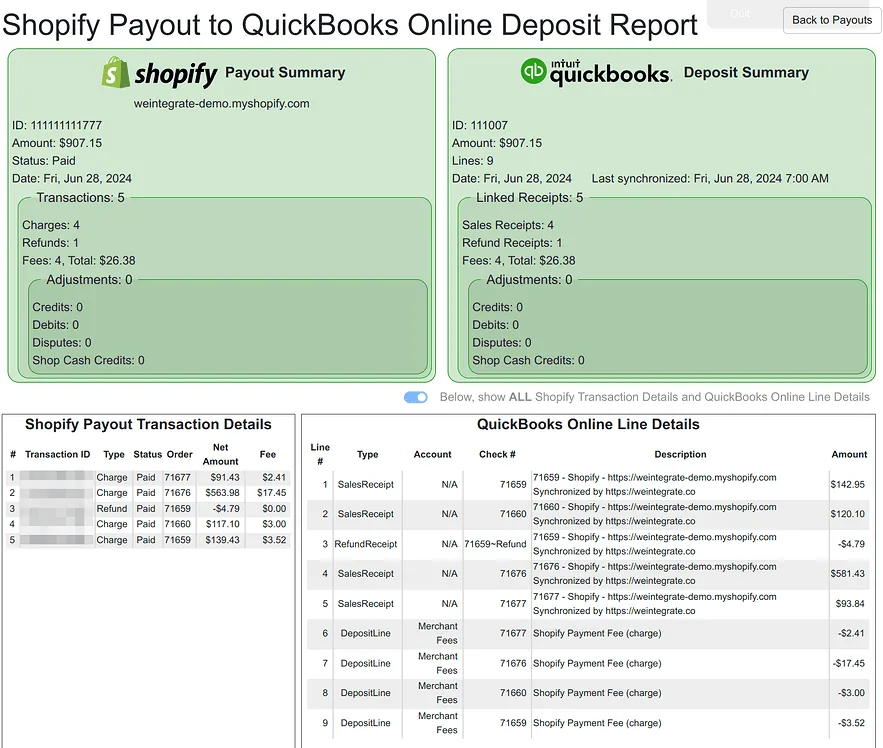
Since the day we launched the Shopify Payout to QuickBooks Online Deposit Report, it has put your Shopify payout and your QuickBooks Online deposit side by side on a single screen — color-coded, line for line, with every discrepancy flagged in red and matched across both sides. That’s how WeIntegrate merchants and their accountants have reconciled payouts for a long time now, and no other Shopify-to-QuickBooks Online integration offers anything close to it.
It just got better in two ways. The reconciliation now opens as an enhanced three-way view — your Shopify payout, your QuickBooks Online deposit, and a third panel for anything that needed special handling, all aligned on one screen. And it now tracks even more of the fees and taxes that come out of a payout, adding dedicated QuickBooks Online accounts for customs duties, import tax, shipping label fees, marketplace sales tax, and the Retail Delivery Fee — each free to appear as its own itemized line or rolled up into a summarized one, whichever suits your books. The deductions that once netted quietly into the bottom line are now accounted for and visible exactly where you reconcile.
The color-coded matching and red discrepancy flags you already rely on haven’t changed — they’re the proven foundation the report has always stood on. What’s enhanced is how the view is laid out and how much of every payout it now accounts for.
Join thousands of happy merchants automating their Shopify accounting with the fastest, most accurate QuickBooks Online integration.
Start Your Free TrialAn Enhanced Three-Way View
The side-by-side reconciliation you already know now opens as an enhanced three-way view, with three aligned panels on a single screen:
- Your Shopify payout — every transaction in the payout exactly as Shopify reports it, with line numbers, order numbers, and amounts.
- Your QuickBooks Online deposit — every line WeIntegrate wrote to the matching QBO Deposit, and the account each one posted to.
- Specially-handled lines — a third panel, shaded with a blue background, that surfaces the lines needing handling beyond a straight one-to-one match — most often when a single Shopify payout is split across more than one QuickBooks Deposit. WeIntegrate makes the association automatically and keeps the linkage visible, so the rare exception stays in view rather than disappearing, and nothing ever looks like it quietly went missing.
Discrepancies are still highlighted in red and cross-linked across every panel by line number and order number, so when something doesn’t tie out you follow the color straight to the transaction involved. That color-coded matching has been there since the report launched — what’s enhanced is that all three panels now sit together, and the deposit side accounts for far more of the payout than it used to.
When a payout is split across more than one QuickBooks Deposit, those lines carry a blue background and stay cross-linked to their counterparts by the same line and order numbers that tie the rest of the report together. You can see exactly which Shopify transactions landed in which deposit, and that the pieces add back up to the whole payout — WeIntegrate builds and maintains that association for you, so a split payout reconciles as cleanly as a simple one. Follow the blue the way you follow the red: it points you straight to the related lines, wherever they ended up.
A Shopify payout is never just sales minus a single fee — it’s sales, less processing fees, less transaction fees, less shipping label costs, less the taxes Shopify collected and remitted on your behalf, less any duties on cross-border orders. Until now, several of those deductions had no dedicated home in QuickBooks. Now every one of them does, and each shows up as its own line in the very same view.
What’s New: More Fees and Taxes, Itemized or Rolled Up
WeIntegrate has always broken your Shopify fees out on the payout deposit. The enhancement widens that coverage: each of these fee and tax types now routes to its own dedicated QuickBooks Online account, ready to appear as a clearly-labeled line instead of being absorbed into the net or left for a month-end adjustment:
- Customs duties — tariffs collected on cross-border orders route to their own Other Current Liability account, kept separate from import tax, on the payout deposit.
- Import tax — tax collected from international buyers routes to its own Other Current Liability account instead of inflating your revenue.
- Shipping label fees — the postage you buy through Shopify Shipping is recorded as the business expense it actually is, on its own deposit line.
- Marketplace sales tax — the facilitator tax Shopify collects and remits for you routes to an Other Current Liability account, never touching your sales income.
- Retail Delivery Fee (RDF) — the Colorado and Minnesota per-order surcharge lands on each qualifying Sales Receipt or Invoice in its own Other Current Liability account, building the remittance balance order by order.
Four of these — customs duties, import tax, shipping label fees, and marketplace sales tax — are payout-level deductions, so they appear as named lines on the QuickBooks Deposit. The Retail Delivery Fee is collected per order, so it lives on the individual Sales Receipts or Invoices that assemble into that deposit. Either way, when you open the report, you don’t just see that the payout reconciled — you see what every piece of it was.
Picture a single payout that mixes a cross-border order with domestic ones. The international order carried import tax and a separate customs duty; you bought a Shopify Shipping label to fulfill it; Shopify collected and remitted marketplace sales tax on another order; and a Colorado delivery added a Retail Delivery Fee. In the old net figure, all of that collapsed into one number you had to take on faith. In the report, it’s a row of named lines — three different liabilities, one expense, and the per-order RDF — each posted to its own account and each sitting beside the matching Shopify amount, so you can confirm not just that the payout balanced but that every dollar landed where it belongs.
You also choose how it reads. Each fee and tax type can stay broken out as its own itemized line, or roll up into a summarized line on the deposit — whichever keeps the books the way you and your accountant prefer. The individual order documents behind the deposit stay per-transaction either way; the roll-up only changes how the deductions are presented, never the underlying detail.
Real Lines, Visible Inside QuickBooks
None of this is reporting sleight-of-hand. Because WeIntegrate builds each payout from real, individually-linked documents — Sales Receipts and Refund Receipts, or Invoices, Payments, and Credit Memos when you run invoice-based accounting — assembled into an actual QuickBooks Deposit, every fee and tax is a genuine line in QuickBooks, not just a figure in WeIntegrate’s view. Open the deposit in QBO and the customs duty line, the shipping label expense, and the marketplace sales tax liability are all right there, posted to the accounts you chose.
That’s the difference between this and a journal-entry integration, which collapses the entire payout into a single net number before it ever reaches QuickBooks. Once that happens, the fees and taxes are gone — there’s nothing to classify, nothing to reconcile against, and nothing to remit from. WeIntegrate keeps every component intact and accounted for, which is exactly why per-transaction documents are the right choice for books an accountant can stand behind.
Why the Right Account Matters
Classifying these deductions correctly isn’t a nicety — it’s the difference between books that reflect reality and books that quietly misstate it.
- A tax you collected and owe to a state — marketplace sales tax, import tax, the Retail Delivery Fee, customs duties — belongs in a liability account. It’s money you’re holding on someone else’s behalf, not revenue. Post it to income and you overstate sales and risk paying tax on money that was never yours.
- A cost you actually incurred — shipping label fees — belongs in an expense account, so your margins reflect what fulfillment really costs.
- Absorbing any of it into the net deposit makes the obligation or the cost invisible on the balance sheet and the P&L entirely.
With every fee and tax posted to its own correctly-typed account, your liability accounts show exactly what you owe and still need to remit, your expenses reflect true cost, and your revenue is just revenue. When remittance time comes, the balance is already sitting in the right account, supported by documentation that’s been accumulating since the first qualifying order.
Built for Busy Merchants and Their Accountants
For Shopify merchants, this means a payout reconciles to the penny without you reverse-engineering what a deduction was. Open the report, read across the panels, and every fee and tax is already named and placed.
For accountants and bookkeepers managing multiple Shopify clients, it removes the most tedious part of the close: chasing down what a payout’s deductions were and where they should post. Marketplace tax, import tax, customs duties, shipping costs, and the RDF are already classified, already on the deposit, already reconciled — and the side-by-side view still flags any true discrepancy in red. The books are audit-ready: anyone reviewing them can see the payout, the deposit, every fee and tax, and the reason for any difference, all tied together.
No other Shopify-to-QuickBooks Online integration offers this depth of classification inside a reconciliation view, because no other integration creates the real, individually-linked deposit lines that make it possible.
How to Open the Report
Open the report from the Payouts tab in your WeIntegrate dashboard. Each payout row has a grid icon — click it to open the side-by-side view for that payout. Payouts with a discrepancy carry an amber indicator, and opening one from that flag lands you with the problematic lines already in focus.
Full step-by-step documentation lives in the WeIntegrate community help doc for the Payout to QBO Deposit Report.
Why This Completes Payout Reconciliation
A payout reconciliation is only as good as the detail behind it. Matching a net deposit to a net payout tells you the totals agree; it tells you nothing about whether the tax you collected is sitting in a liability account, whether your shipping costs are recorded as expenses, or whether a cross-border duty is tracked for remittance. Those answers used to require pulling Shopify exports apart by hand, every month.
Now they’re in the report. The Shopify payout, the QuickBooks deposit, every fee, every tax, and every discrepancy are on one screen — each piece classified, each piece accounted for, each piece visible in QuickBooks where the books live. You open one report, and the full, fully-classified picture is already there.
Ready to Get Started?
The fastest and most accurate way to sync Shopify with QuickBooks Online (QBO).
Start your free 15-day trial of WeIntegrate and connect your Shopify store to QuickBooks Online in 10 minutes. No credit card required.
See Also
- Game Changer — the Shopify Payout to QuickBooks Online Deposit Report — the side-by-side, color-coded reconciliation view these fee and tax lines now flow into.
- Why per-transaction documents are the right choice for Shopify-QuickBooks Online integration — the accounting foundation that makes real, classified deposit lines possible.
- Invoices, Payments, and Credit Memos for Shopify in QuickBooks Online — invoice-based accounting for B2B, wholesale, and net-terms stores, with the same per-transaction documents flowing into the payout deposit.
For each fee and tax now classified to its own QuickBooks Online account:
- Customs Duty Account: Separate Liability Tracking for Cross-Border Tariff Collections
- Import Tax Account: Keeping International Buyer Tax Out of Your Merchant Revenue
- Shipping Label Fees Account: Recording Shopify Postage Costs as the Business Expenses They Are
- Marketplace Sales Tax Account: Keeping Facilitator Tax Out of Your Revenue
- Colorado and Minnesota Retail Delivery Fee (RDF) Tracked Automatically in QuickBooks Online