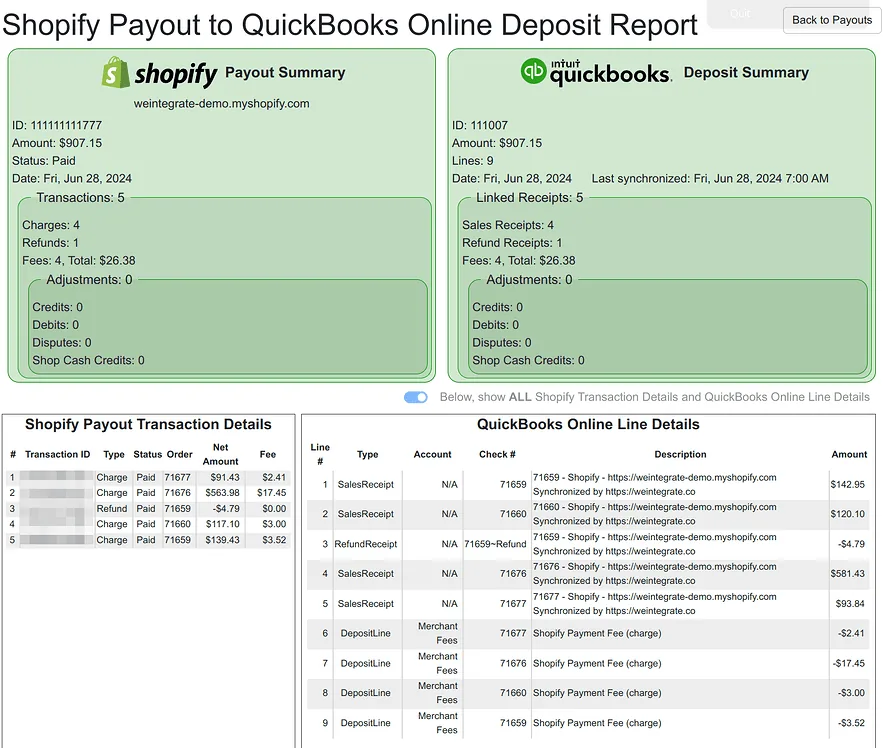
No other Shopify-to-QuickBooks Online integration offers this. WeIntegrate is the only solution that creates real QuickBooks Online Deposits from Shopify payouts — and because those deposits contain individually linked orders, it can give you something no journal-entry-based integration ever could: a single, holistic view that brings every Shopify payout transaction, every QuickBooks deposit line, every fee, and every discrepancy together in one place, with issues automatically surfaced and emphasized so nothing requires hunting.
That’s the Shopify Payout to QuickBooks Online Deposit Report.
Stop wasting hours on error-prone manual entry or summary journals. Get the #1 trusted automated instant accounting solution. Penny-accurate, real transaction details — instantly.
Start Your Free TrialWhy No Other Integration Can Offer This
Because WeIntegrate syncs every Shopify transaction as a real, individual document and links it to an actual QuickBooks Deposit, this report is possible. At the journal entry level, it never could be.
Most Shopify-QuickBooks integrations post a journal entry for each payout. That entry captures the net cash amount, but it creates no actual QuickBooks Deposit, and it links no individual orders to it. When your bank transaction comes in, there’s nothing to reconcile against at the transaction level. There are no line items to inspect, no order numbers to cross-reference, and no mechanism to detect whether a $0.07 discrepancy exists.
WeIntegrate creates a real QuickBooks Deposit for each payout and assigns every individual Sales Receipt and Refund Receipt to that deposit as its own line. That structure is what makes the report possible. Every Shopify transaction has a corresponding QuickBooks line, and the report maps them.
What the Report Shows
Everything you need to reconcile a Shopify payout lives in this one report: the Shopify transaction details, the QuickBooks deposit lines, processing fees, adjustments, and any discrepancies between them. You don’t open Shopify in one tab and QuickBooks in another. You don’t export reports from both systems and compare them in a spreadsheet. It’s all here, pre-matched, in a single unified view.
The report is organized into four sections that move from the big picture down to individual transaction lines.
Payout & Deposit Summary
The top section presents a side-by-side comparison of the Shopify payout and the QuickBooks deposit at the count level:
- Shopify side — number of charges, refunds, fees, credits, debits, disputes, and shop cash credits
- QuickBooks side — number of Sales Receipts, Refund Receipts, and deposit adjustment lines created
If the counts don’t align, that’s the first place to look. A mismatch here tells you whether the issue is a missing document, an unmatched order, or an adjustment that came through differently than expected.
Discrepancy Detection
When WeIntegrate detects an amount discrepancy between the Shopify payout and the QuickBooks deposit, the report doesn’t bury it — a dedicated red section appears automatically, immediately visible at the top of the affected area, and the problematic lines are brought into focus without any scrolling or searching required. You don’t have to know there’s a problem before you look for it. The report tells you.
The discrepancy section highlights the specific lines where amounts diverge. This is the same signal that drives the amber payout indicator in your dashboard: if you’ve seen a flagged payout and clicked through, this is where the detail lives — already isolated, already labeled.
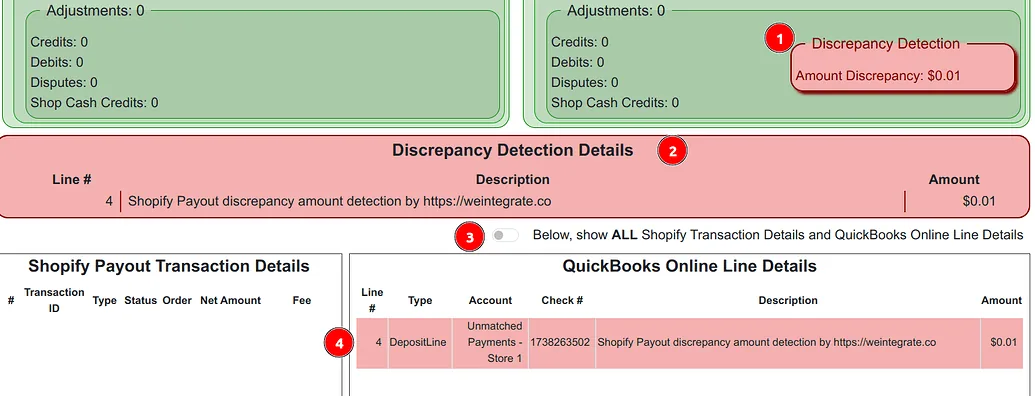
Most discrepancies fall into predictable categories:
- A chargeback or dispute filed after the payout closed
- A shop cash credit not accounted for in the deposit
- A rounding difference on transactions charged in a foreign currency to an international customer
- An adjustment that Shopify applied mid-cycle
Seeing the exact line — rather than a total dollar mismatch with no context — makes these straightforward to resolve. With a journal entry approach, this information simply doesn’t exist: the entry posts the net, the problem is invisible, and you only find out something is wrong when the bank reconciliation fails to balance.
Adjustment Details
Adjustments are the reconciliation edge cases that catch accountants off guard: Shopify credits, platform debits, dispute reserves, and similar items that aren’t standard charges or refunds. The report surfaces these in a dedicated section with a distinct background, separate from the main transaction flow.
Each adjustment line shows the type (credit, debit, dispute, shop cash credit), the amount, and how it was recorded on the QuickBooks deposit. If an adjustment was handled in a way that differs from your expectations, this is where you’ll see it.
Transaction Details
The core of the report is a dual-column layout that maps Shopify payout transactions to QuickBooks deposit lines side by side.
Shopify payout side — 7 columns:
- Line # — Transaction position in the payout
- Transaction ID — Shopify’s unique transaction identifier
- Type — Charge, refund, credit, debit, or dispute
- Payment status — Shopify payment state for that transaction
- Order # — The associated Shopify order number
- Net amount — Transaction amount excluding fees
- Fee amount — Processing fee for that transaction
QuickBooks deposit side — 6 columns:
- Line # — Deposit line position in QBO
- Line type — Sales Receipt, Refund Receipt, or deposit adjustment line
- Account — The QuickBooks account associated with that line
- Order # — The linked Shopify order number (matches across columns)
- Description — Deposit line description as it appears in QBO
- Amount — The amount recorded on that deposit line
The order number is the cross-reference point. When the Shopify order number on the left matches the order number on the right, the transaction is fully reconciled. When they don’t match — or when a line appears on one side with no counterpart — that’s your signal to investigate.
How to Access the Report
Full documentation is in the WeIntegrate community help doc for the Payout to QBO Deposit Report.
Payouts with discrepancies have an amber indicator in your dashboard. Clicking directly from a flagged payout opens the report with focus on the problematic lines — you don’t need to scroll to find them.
Why This Unified View Changes Everything
Consider what reconciling a Shopify payout actually looks like without this report.
You open Shopify’s Payouts page to find the payout detail — transaction IDs, order numbers, fees, net amounts. Then you switch to QuickBooks to find the corresponding deposit — if your integration even created one, which most don’t. Then you try to match Shopify’s transaction list to QuickBooks’ deposit lines, manually, order number by order number, amount by amount. If there’s a discrepancy, you have no idea where to start: the numbers don’t balance, but nothing in either system tells you which line caused it. You’re peeking at two separate screens, hunting for a difference that could be anywhere, in any transaction, for any amount down to a few cents.
For a payout with 50 transactions, that process takes an hour or more per payout cycle — and that’s assuming you can even find the problem. Most of the time, subtle discrepancies in a journal entry just disappear into the net amount, undetected, until a bank reconciliation won’t close or a client’s books won’t balance.
WeIntegrate’s Payout to QBO Deposit Report collapses that entire workflow into a single screen. Every Shopify payout transaction sits on the left. Every corresponding QuickBooks deposit line sits on the right. Fees are on the report. Adjustments have their own dedicated section. Discrepancies don’t require hunting — they’re automatically flagged, visually emphasized in red, and the specific lines causing the mismatch are brought directly into focus.
Nothing is hidden. Nothing requires switching between systems. You open the report, and the full picture is there — the Shopify side, the QuickBooks side, the fees, and any problems — unified in one holistic view that no other Shopify-to-QuickBooks integration can offer.
For bookkeepers managing multiple Shopify clients, this report is a game changer — the difference between a reconciliation task that takes an hour per client and one that takes minutes, with every discrepancy already found for you.
Get Started
Start your free 15-day trial and see WeIntegrate’s payout reconciliation and reporting in action. No credit card required.