Back in March we announced conditional sync rules in private preview. Today they’re live for every WeIntegrate merchant.
Conditional sync rules let you tell WeIntegrate exactly which Shopify orders should create documents in QuickBooks Online — and which should be held back entirely. Real-time sync remains the right default for most orders. But for the exceptions that have always required manual cleanup, you now have four precise controls to handle them automatically.
Automated, accurate accounting and instant sync: sales, refunds, fulfillments, inventory, payouts, tax — real transaction details, not batched, delayed summaries.
Start Your Free TrialWhy This Matters
QuickBooks is your accounting record, not a mirror of every Shopify event. Test orders, wholesale accounts handled outside your standard flow, orders tied to payment gateways you reconcile separately, draft orders placed before a sale is confirmed — none of these belong in QuickBooks automatically, and until now there was no clean way to prevent them from showing up.
The result for most merchants managing any complexity: a weekly or monthly chore of voiding, deleting, or ignoring QuickBooks documents that should never have been created. Conditional sync rules eliminate that entirely.
The Four Conditions
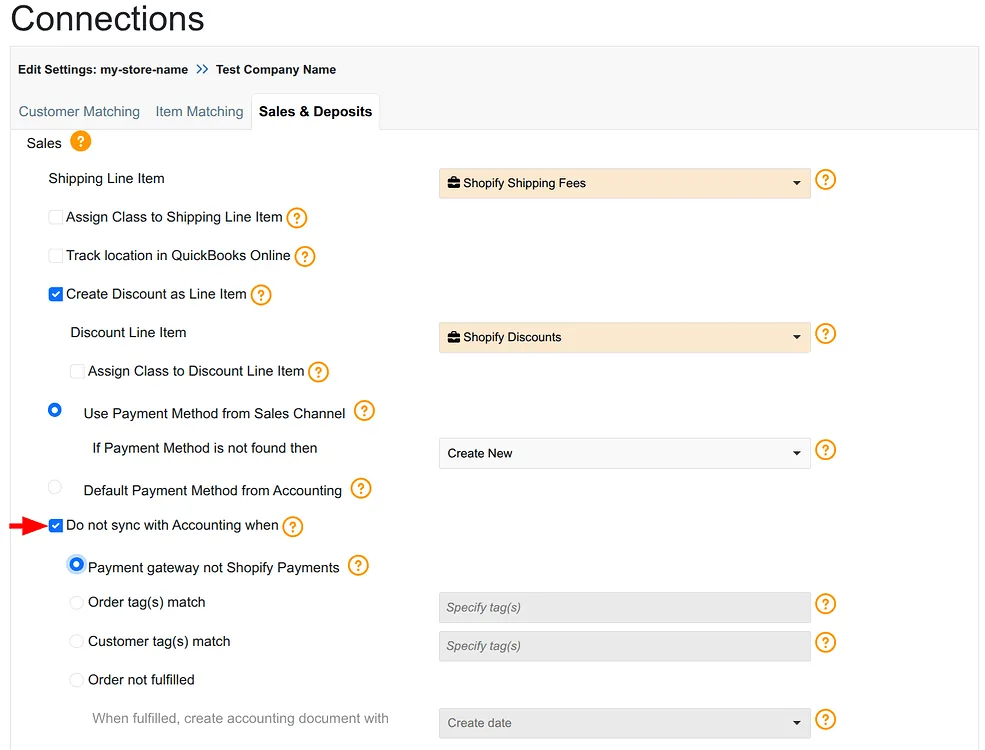
Filter by Payment Gateway
Exclude orders processed through specific payment gateways — PayPal, manual payments, external processors, or any gateway you handle through a separate accounting workflow. Orders placed through those gateways still appear in your WeIntegrate dashboard in full, but no QuickBooks Sales Receipt is created. You reconcile them the way you already do, without WeIntegrate getting in the way.
This is the right setting for merchants who use Shopify Payments for most orders but run a secondary gateway for specific customers or order types that require different accounting treatment.
Filter by Order Tags
Exclude orders carrying specific Shopify tags. Enter any tag — wholesale, test, black-friday-hold, staff-purchase — and orders with that tag are held back from QuickBooks automatically. Multiple tags can be added; any order matching any of them stays out.
This is the most flexible condition for merchants who already tag orders for operational reasons. If wholesale orders are tagged wholesale in Shopify, one setting here keeps them entirely out of your retail QuickBooks records without any ongoing manual work.
Tag spelling must match exactly — WeIntegrate matches the tag as entered, case-sensitive.
Filter by Customer Tags
Exclude orders from customers whose Shopify customer profiles carry specific tags. Wholesale accounts, VIP customers on net terms, internal staff accounts, or any customer segment you handle outside the standard QuickBooks workflow can be excluded at the customer level rather than having to tag every individual order.
If your wholesale customers are already tagged in Shopify, this is the cleaner approach — the rule follows the customer, not the order.
Delay Sync Until Fulfillment
For merchants who want QuickBooks to reflect shipped goods rather than placed orders, this condition holds sync until each order is marked fulfilled in Shopify. No Sales Receipt is created at order placement. When the order fulfills, WeIntegrate syncs it to QuickBooks automatically.
This setting also includes a choice of document date: use the order date (when the purchase was made) or the fulfillment date (when it shipped). For merchants on a cash-basis or revenue recognition model tied to shipping, the fulfillment date option keeps QuickBooks in lockstep with actual operations.
How It Works in Practice
Conditional sync rules are configured per Shopify connection in your Sales & Deposits settings. Enable the condition, select your criteria, save — and it applies to all new orders created from that point forward.
Orders that match your condition appear in your WeIntegrate dashboard marked “Accounting Not Sync” — they’re fully visible, tracked, and accounted for in WeIntegrate. They simply don’t generate a QuickBooks document unless and until the condition changes (fulfillment, in the case of the fulfillment delay rule).
The setting is non-retroactive: existing orders already synced to QuickBooks are not affected. Only orders created after enabling the rule are evaluated against it.
For the complete configuration walkthrough, see the WeIntegrate help documentation for conditional sync rules.
The Right Tool for Complex Operations
If your Shopify store runs a single straightforward workflow, you may never need this feature — and that’s completely fine. Real-time sync of everything remains the right default and requires no changes.
But if you’ve ever spent time cleaning up test orders in QuickBooks, manually excluding wholesale transactions, or wondering why PayPal orders are creating documents you don’t want, conditional sync rules are the clean fix you’ve been waiting for.
Log in to WeIntegrate and find the conditional sync setting in your Sales & Deposits configuration. Not yet a customer? Start your free 15-day trial — no credit card required.