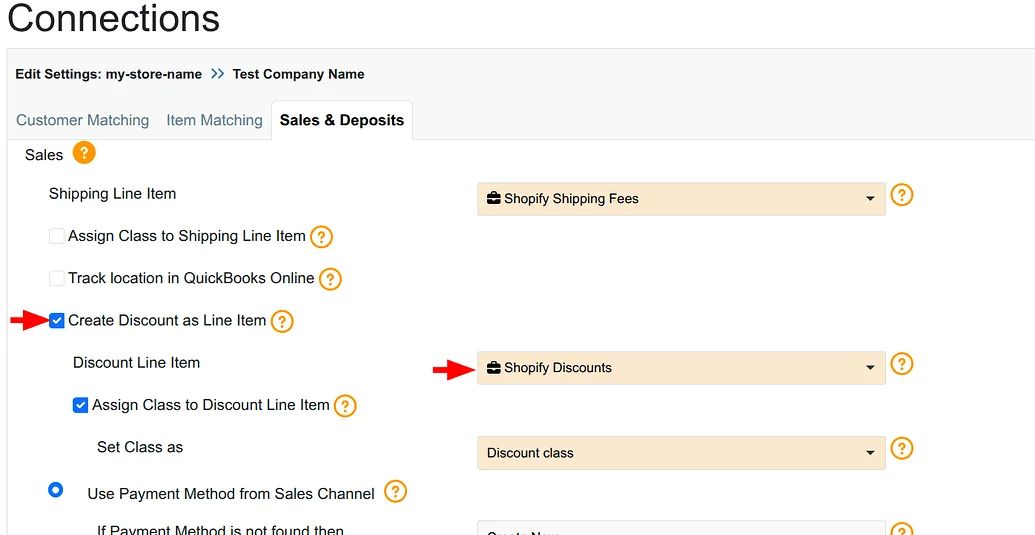
By popular demand — the same customer feedback that drove WeIntegrate to ship Shopify shipping fee line item mapping — Shopify discounts now map to a dedicated Service-type line item on all QuickBooks Online transaction documents — Sales Receipts, Refund Receipts, Invoices, and Credit Memos. The shipping line item feature gave merchants better control over how Shopify data posted in QBO: a named, reportable line item, per-transaction sales tax accuracy, and optional class assignment. Customers asked for the same treatment for discounts. Now discounts have it.
Join thousands of happy merchants automating their Shopify accounting with the fastest, most accurate QuickBooks Online integration.
Start Your Free TrialThe Default Behavior and What It Costs
QuickBooks Online has a dedicated discount field on transaction documents — a single adjustment applied after the line items are totaled. WeIntegrate uses this field by default. The discount reduces the transaction total accurately, bank reconciliation works, and the numbers balance.
What the default does not produce is a visible discount record. The discount field on a QBO Sales Receipt is not an income account entry, not an expense account entry, and not a line item — it is a reduction applied to the subtotal before tax. When you look at a QBO income report, the discount amount does not appear as a named line anywhere on it. When you want to know how much revenue you gave up on promotions during Q4, QuickBooks has no answer, because the data was never recorded in a form that reports can consume.
For merchants running occasional one-off promotions, this may never surface as a problem. For merchants running structured discount programs — seasonal promotions, loyalty discounts, bulk pricing tiers, influencer codes, or recurring welcome discounts — the reporting blind spot is real and grows with volume.
What Discount Line Items Change
When WeIntegrate maps Shopify discounts as dedicated line items instead of the default QBO discount field, every discount becomes an explicit entry on the transaction document — linked to a QuickBooks service item you designate for discount tracking.
The result is a set of changes that compound across every transaction:
- Discount tracking by transaction — every QBO transaction document WeIntegrate creates (Sales Receipts, Refund Receipts, Invoices, and Credit Memos) shows the discount as a named line item with its amount and associated service item. Any transaction can be opened and the discount is visible as a document element, not a buried adjustment.
- Your account, not QBO’s default — the QBO discount field posts to a fixed system account you cannot change. A discount line item posts to whatever account is attached to your chosen Service item — so discounts land exactly where your chart of accounts expects them, whether that’s a dedicated Discounts Given account, a contra-revenue account, or any other account that fits your bookkeeping structure.
- Reportable discount totals — because the discount is now tied to a QBO service item, QuickBooks can generate reports showing total discount value by date range, by customer, and by item. The data is in QBO in the form QBO’s reporting engine can use.
- Class assignment for discount lines — just as shipping line items support class tracking, you can assign a QuickBooks class to every discount line item WeIntegrate creates. Promotions across different business segments post to the right class automatically, without touching individual transactions.
- Consistent across all document types — the same line item mapping applies whether you use Sales Receipts and Refund Receipts or Invoices and Credit Memos. When a discounted order is refunded or credited, the discount appears on the reversal document with the same structure, maintaining consistency across the full transaction lifecycle.
- Audit-ready records — every discount is on a transaction document, not reconstructed from Shopify reports after the fact. If your accountant or an auditor wants to see the discount basis for any transaction, it is in QBO.
How to Configure It
The setting lives in the Sales & Deposits tab of your Shopify connection in WeIntegrate. Enable the “Create Discount as Line Item in QuickBooks Online” checkbox, select the Service-type item from your QBO company that should represent discounts, and save. If class tracking is enabled in QBO, an optional class assignment field appears alongside the service item selector — the same pattern as shipping line item class configuration. The setting applies to all transactions going forward and is not retroactive. For the full setup walkthrough, see the documentation linked below.
Who Gets the Most Value From This Setting
Merchants with structured promotion calendars — seasonal discounts, welcome codes, loyalty tiers, flash sales — see the most immediate impact. When promotions run consistently, the ability to report on total discount value by period directly from QuickBooks is the difference between knowing your promotion economics and estimating them from Shopify reports outside QBO.
Accountants and bookkeepers managing Shopify clients who need discount data visible in QBO for month-end close and P&L review. With discount line items in place, every transaction document in QBO reflects the complete economics of the order — including what was discounted — without requiring a separate Shopify report lookup.
Merchants using QBO class tracking gain the ability to attribute discounts by business segment. A store operating multiple sales channels or product lines can use class-tagged discount line items to break down promotional spend by segment directly in QBO.
Get Started
Start your free 15-day trial and connect your Shopify store to QuickBooks Online in 10 minutes. Discount line item mapping, class tracking, and every other configuration option are available from your first sync. No credit card required.
For the complete configuration walkthrough — including how to create the discount service item in QuickBooks Online and how to enable class tracking — see the WeIntegrate documentation on mapping Shopify discounts to discount line items in QuickBooks Online.