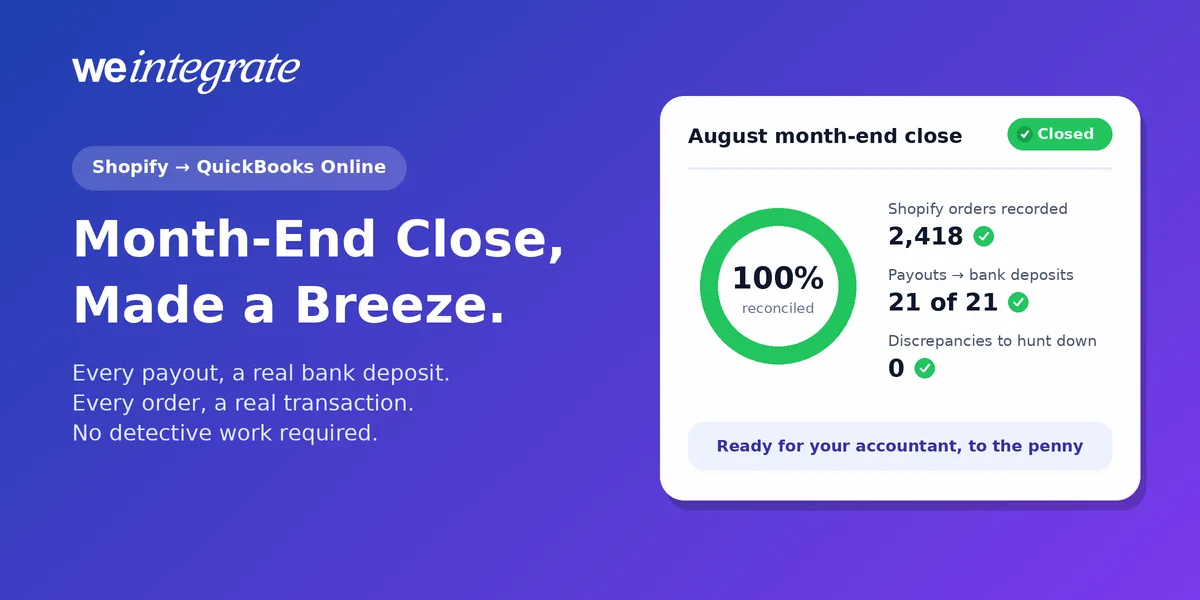
Month-end close for Shopify in QuickBooks Online — confirming your books are right before you run reports or hand them to your accountant — is where every shortcut of the past month comes due. It doesn’t matter much whether your Shopify sales reach QuickBooks by hand, through a stack of spreadsheets, or through an integration that drops them in as daily or weekly lump sums. The first of the month tends to look the same: a line like “Shopify sales — week of the 14th: $18,406.22”, payouts that only came to $17,390.48, and a bookkeeper playing detective to hunt down the difference. The pain doesn’t come from the close. It comes from books that were never built one real transaction at a time. When every order and every payout is already in QuickBooks Online as a real transaction, all month long, instantly and to the penny, month-end is already done before it starts. That’s what WeIntegrate does.
Every Shopify order and payout in QuickBooks Online the moment it happens — real transactions, real bank deposits, reconciled to the penny. Month-end, made a breeze.
Start Your Free TrialWhy Month-End Feels Like a Mess: Spreadsheets and Lump-Sum Data Dumps
There are two common ways Shopify sales end up in QuickBooks Online without real transactions behind them. They feel very different day to day, but at month-end they break in exactly the same places.
The Spreadsheet Route
Some stores keep the books by hand. Every week or month, someone exports Shopify’s sales and payout reports, pastes them into a spreadsheet, adds up the totals, and types a summary into QuickBooks. Then they try to work out why the bank got less than the spreadsheet says — fees, refunds, and the taxes Shopify held back are all somewhere in a different export. It works when there are twenty orders. At hundreds, it’s hours of copying and cross-checking, one mistyped cell away from a wrong total, and it usually lives in one person’s head. When they’re on vacation, so is your month-end.
The Lump-Sum Integration Route
Plenty of Shopify integrations automate that same shortcut instead of fixing it. They don’t record your sales one by one. They wait, add up a day or a week of orders, and drop the total into QuickBooks as a single summary journal entry — one line standing in for hundreds of sales. It looks tidy, and it’s faster than a spreadsheet. But it’s still a data dump, and month-end is when you pay for it.
Either way, here’s what you’re left to untangle at the end of every month:
- Which orders are in it? A summary has a total, but no order numbers and no customers. When something looks off, there’s nothing to click on.
- Why doesn’t it match the bank? Shopify pays you a net amount — sales minus fees, minus refunds, minus any tax it collected and paid to the state for you. A total of sales will never match that deposit, so someone has to rebuild the gap by hand.
- Where did the refund go? A return from the 3rd that settled on the 22nd is buried in two different totals.
- What did the fees really cost? Often they aren’t recorded at all — they just quietly shrink the deposit.
- Is the sales tax right? Tax collected across hundreds of orders is rolled into one figure you have to take on faith.
Many integrations add a “clearing account” on top to make the totals net out to zero. As we explained in Clearing Accounts, Be Gone, a zero balance only proves the numbers cancel — not that they’re right. The mess is still there. It’s just been swept into a corner you have to clean every month.
A Lump-Sum Month-End Is a Dozen Steps — and Counting
That’s what month-end typically takes when your Shopify sales arrive as daily or weekly lump sums, whether they were typed in from a spreadsheet or dropped in by an integration. Someone — you, your bookkeeper, or your accountant on the clock — has to pull every payout apart, rebuild the fees, refunds, chargebacks and taxes the lump sum threw away, and play detective until the numbers finally tie out. It’s a dozen steps before anyone can trust a single report, every single month, and the list only grows as you sell more.
WeIntegrate keeps that detail from day one. Here’s how — and why month-end comes down to three steps instead of a dozen.
All Month Long: Real Transactions, the Moment They Happen
WeIntegrate skips the lump sum entirely. Every Shopify order becomes its own real transaction in QuickBooks Online, instantly — web or in-person POS, retail or wholesale:
- A Sales Receipt — QuickBooks’ record of a sale that’s paid on the spot — for a normal store order, and a Refund Receipt if it’s returned.
- Or, for wholesale customers who pay later, an Invoice — the bill you send — then a Payment when they pay it, and a Credit Memo — a credit you owe the customer — if you issue a refund or credit. That’s the same flow that lets one QuickBooks company handle both retail and wholesale.
Every one of them carries the details a lump sum throws away: the order number, the customer, the products, the discount, shipping, and the exact sales tax Shopify collected. So by the time the month ends, there’s nothing left to enter. The work was done order by order, as it happened.
Your Payouts Arrive as Real Bank Deposits — Already Matched
This is the part that turns month-end from a chore into a formality. When Shopify sends you a payout, WeIntegrate automatically creates a real Bank Deposit in QuickBooks Online for it — and fills that deposit with the actual transactions inside it:
- The actual orders — every Sales Receipt, Refund Receipt, Invoice payment and Credit Memo that the payout covers, each on its own line.
- The fees — Shopify’s processing and transaction fees, recorded as the business expenses they are.
- Credits, debits, chargebacks and disputes (when a customer disputes a card charge) — each itemized, even when it settles weeks after the original order.
WeIntegrate builds the deposit the way QuickBooks intends, through its built-in Undeposited Funds account, so the deposit total equals your Shopify payout to the penny. When your bank feed — the transactions QuickBooks pulls in from your bank — brings in the real money, QuickBooks simply matches it to the deposit that’s already waiting. One payout, a matching deposit, one click. Depending on your plan, deposits are created weekly (Startup), daily (Basic), or several times a day (Growth and up) — so by month-end, every payout in the month is already there.
The Game-Changing Report That Does Month-End’s Heavy Lifting
“Matched to the penny” is easy to say. WeIntegrate shows you. The three-way Shopify Payout to QuickBooks Online Bank Deposit Report puts everything on one screen:
- Your Shopify payout — every transaction exactly as Shopify reports it.
- Your QuickBooks Online deposit — every line WeIntegrate recorded, and where it went.
- Anything that needed special handling — for example, a payout split across more than one deposit — shaded blue so it never looks like something went missing.
Every line is cross-linked by line and order number. Each payout gets a simple status in your dashboard: green when it’s clean, amber the moment something doesn’t add up, and red if a deposit couldn’t be created. Open a flagged payout and the line that caused the difference is highlighted and waiting — no spreadsheets, no flipping between Shopify and QuickBooks, no guessing which of 400 orders is the problem. No other Shopify-to-QuickBooks Online integration offers anything close, because no other one builds the real, linked deposit lines that make it possible. (The full Payout to Deposit and Discrepancy Report comes with Growth plans and up; Basic includes a basic version.)
Fees and Taxes, Already in the Right Place
Payouts carry more than a single fee, and at month-end the “other stuff” is usually what trips you up. WeIntegrate puts each piece where it belongs as it goes, so there’s nothing to move around later:
- Processing fees land as expenses — so your profit is your real profit.
- Marketplace sales tax — the tax Shopify collects and pays to the state for you — lands in a liability account — money you’re holding for someone else — because it was never your money. It doesn’t inflate your sales.
- Shipping labels you buy through Shopify land as a shipping expense, and import tax and customs duties on cross-border orders each get their own account.
- Colorado and Minnesota retail delivery fees are tracked order by order, ready to pay the state.
Dedicated accounts for merchant fees, shipping labels, marketplace sales tax, import tax and customs duty are part of Professional plans and up, and each can appear as its own line on the deposit or roll up into one — your choice, without losing the detail behind it. Retail delivery fee tracking is part of Enterprise, and those fees sit on each individual sale rather than on the deposit.
Month-End With WeIntegrate: Three Steps Instead of a Dozen
Here’s the whole routine:
- Open your Payouts tab. Green all the way down? Every payout this month matched its bank deposit to the penny.
- Open anything amber. On Growth plans and up, click the grid icon on that payout and the report takes you straight to the line that’s different — a chargeback that settled late, a credit, something that landed in a different payout — with the detail to resolve it.
- Match your bank feed, then run your reports. The deposits are already there, so matching is a click per payout, not an evening per month — and your profit and loss, what you own and owe, and your sales tax totals have been current all month, because every order was recorded the moment it happened.
That’s it — three steps, not a dozen. Your bookkeeper or accountant gets books where every Shopify order traces to its QuickBooks transaction and every payout traces to a real deposit — the kind of books they can close quickly, and stand behind.
Financial Visibility Every Day, Not Just After Close
The best part of an instant, transaction-by-transaction approach isn’t just a faster month-end. It’s that you don’t have to wait for month-end to know how your business is doing. With lump sums, your numbers are only as fresh as the last summary. With WeIntegrate, every order syncs instantly, so your sales, cash, profit and what customers owe you are current on the 9th, the 17th and the 28th — not just after close.
Month-end becomes what it should have been all along: a quick confirmation that everything you’ve been seeing all month was right. WeIntegrate works in the US, Canada, the United Kingdom, Australia and with the QuickBooks Online Global edition, and it takes about 10 minutes to set up.
Get Started
Start your free 15-day trial and connect Shopify to QuickBooks Online in about 10 minutes — then watch every order and payout land as real transactions and real bank deposits, reconciled to the penny, all month long. No credit card required.
See Also
- The Enhanced 3-Way Shopify Payout to QuickBooks Online Deposit Report — every fee, tax and difference on one screen.
- How to Reconcile Shopify Payments in QuickBooks Online — Automatically — zero manual matching.
- Clearing Accounts, Be Gone — why WeIntegrate never needs a workaround account.
- Marketplace Facilitator Tax in Your Shopify Payout Isn’t Revenue — keeping tax Shopify collects for you out of your sales.
- The Lump-Sum Myth: Every Shopify Order Belongs in QuickBooks Online — why every order should be its own real transaction.
- Shopify Payouts to QuickBooks Online Deposits: Now Live for All Merchants — how every payout becomes a real bank deposit.