
WeIntegrate is building something that will change how Shopify merchants handle payout reconciliation: automated matching of every Shopify payout to a real QuickBooks Online Deposit, with every Sales Receipt and Refund Receipt linked inside it. When it lands, your books will reconcile themselves.
But for that automation to work from day one, two settings need to be in place before it does. Configure them now and you’ll be ready the moment it launches. Leave them wrong and the automation has nowhere to operate.
Those two settings are Sales Default → Deposit Payment To and Refunds Default → Refund From. Both must be set to Undeposited Funds.
Stop wasting hours on error-prone manual entry or summary journals. Get the #1 trusted automated instant accounting solution. Penny-accurate, real transaction details — instantly.
Start Your Free TrialWhy Undeposited Funds Exists
Undeposited Funds is a holding account built into QuickBooks Online. It’s where payment amounts sit after they’re collected but before they’re matched to an actual bank deposit. Think of it as the staging area between “payment received” and “money in your bank account.”
Intuit’s own documentation describes it as the account that “holds customer payments in QuickBooks until you deposit them at your real-life bank” — and explains that its purpose is to make bank reconciliation accurate by letting you group multiple payments into a single deposit that matches exactly what appears on your bank statement. Payments that skip Undeposited Funds and post directly to a bank account create duplicate entries and orphaned transactions that are hard to unravel. You can read the full explanation in Intuit’s official Undeposited Funds documentation.
Shopify payouts work by batching: Shopify collects individual customer payments throughout the payout period, then sends a single net deposit to your bank — gross sales, minus processing fees, minus any refunds. Your bank sees one deposit per payout period, not one per order.
That’s Shopify’s behavior. What happens inside QuickBooks is a separate question — and the answer depends entirely on how WeIntegrate is configured.
WeIntegrate will deliberately use QuickBooks Online’s official Undeposited Funds workflow to map Shopify’s batched payouts into QBO correctly. Rather than posting each transaction directly to a bank account — which bypasses QBO’s intended reconciliation flow and is the source of most integration-related accounting problems — WeIntegrate will route every Sales Receipt and Refund Receipt through Undeposited Funds first, following exactly the mechanism Intuit designed for batched deposit scenarios. When a Shopify payout arrives, WeIntegrate will group the matching transactions staged in Undeposited Funds and assemble them into a real QBO Deposit for the net payout amount — the official QuickBooks way to represent a batched bank deposit.
That only works if the transactions are in Undeposited Funds to begin with.
How the Flow Works
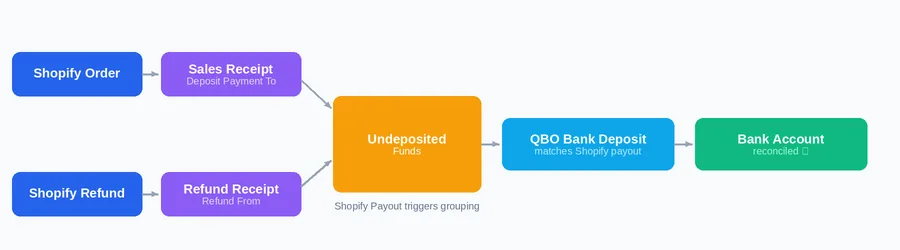
This is how WeIntegrate will use QuickBooks Online’s official Undeposited Funds flow to handle Shopify payouts — not because that’s how Shopify itself manages its accounting, but because it’s the correct QBO mechanism for representing batched deposits. WeIntegrate routes every Sales Receipt and Refund Receipt through Undeposited Funds, then when a Shopify payout arrives, groups and assembles those staged transactions into a real QBO Bank Deposit for the net amount. This is the workflow Intuit built for exactly this kind of scenario. If either WeIntegrate setting points to the wrong account, transactions never enter Undeposited Funds and WeIntegrate has nothing to assemble the deposit from.
Sales Default: Deposit Payment To
The Deposit Payment To setting in WeIntegrate’s Sales Default configuration controls which account receives the payment amount when a Sales Receipt is created in QuickBooks Online from a Shopify order.
It must be set to Undeposited Funds.
When it is, every Sales Receipt WeIntegrate creates flows into that holding account — staged and waiting to be placed into the correct Shopify payout deposit when automated reconciliation runs. The deposit WeIntegrate creates in QBO will reflect your actual bank deposit, with every contributing Sales Receipt visible and linked inside it.
When it isn’t — when Deposit Payment To points to a checking account or any other account directly — those Sales Receipts are posted immediately to that account. There’s no way to gather them back into a payout deposit after the fact. The automation has nothing to work with.
Refunds Default: Refund From
The Refund From setting in WeIntegrate’s Refunds Default configuration controls which account is listed as the source of funds on Refund Receipts created from Shopify refunds.
It must also be set to Undeposited Funds.
Shopify refunds don’t leave your bank account independently — they’re deducted from the payout they fall within. Refund Receipts need to sit in Undeposited Funds for the same reason Sales Receipts do: so they can be included in the payout deposit that accounts for them. A refund processed mid-payout period reduces the gross amount Shopify sends you. That reduction needs to appear inside the QBO Deposit, offset against the Sales Receipts it belongs with.
If Refund From points anywhere other than Undeposited Funds, Refund Receipts post directly to that account and fall outside the payout reconciliation entirely — leaving every deposit short by exactly the refund amounts.
Two Settings, One Right Answer
Both settings live in your WeIntegrate configuration and both have the same answer: Undeposited Funds. Configure them now and automated Shopify Payout to QuickBooks Deposits will work from the moment it launches — every transaction already staged exactly where it needs to be.
There’s no retroactive fix for transactions that posted to the wrong account. The time to set this correctly is before orders start syncing, not after months of data has landed in the wrong place.
Start your free 15-day trial and configure your Sales Default and Refunds Default as part of your 10-minute setup. No credit card required.