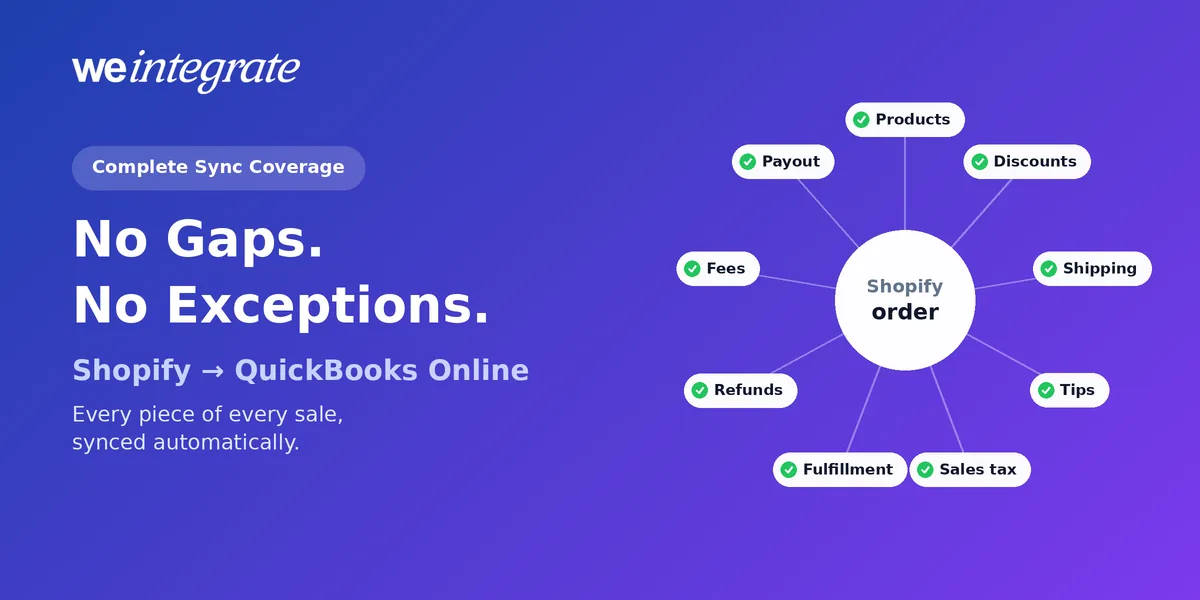
Ask what an integration syncs and you’ll usually hear “orders.” But an order is only where a Shopify sale begins. It gets a discount, a shipping charge, maybe a tip and sales tax; then it’s fulfilled, sometimes refunded, and finally paid out with fees taken off the top. Every one of those pieces affects your books. WeIntegrate brings all of them into QuickBooks Online automatically — every order, refund, fee, tax and payout as a real transaction, instantly, to the penny. No gaps, no manual entry.
Orders, refunds, fees, taxes, shipping, discounts, tips and payouts — all of it in QuickBooks Online automatically, as real transactions, to the penny.
Start Your Free TrialThe Gaps Most Integrations Leave
The trouble with partial coverage is that nobody notices the missing piece until month-end. A sync that only sends a daily or weekly summary journal entry — or waits for the payout and books the net — leaves holes you fill by hand:
- Fees become one line with no order behind them. You can see what Shopify charged in total, but not which sale it came from.
- Refunds arrive unattached. A return shows up inside a later total with nothing tying it to the sale it reversed.
- Shipping, discounts and tips become category totals. You see a day’s worth, not what each order actually carried.
- Tax can’t be traced. One daily tax figure can’t be tied back to the order, the address or the state it belongs to.
Every hole is a manual entry, and every manual entry is a chance to be off by a few cents — or a few hundred dollars.
Everything a Shopify Sale Touches, Synced
The order itself
Each order becomes a Sales Receipt (QuickBooks’ record of a sale paid on the spot) or, for wholesale and terms customers, an Invoice (the bill you send), with Payments and Credit Memos to follow. On it:
- Every product line with its SKU and description.
- Discounts — as their own line item if you prefer, so you can see exactly what promotions cost.
- Shipping on its own line item, so postage income stays separate from product sales.
- Tips on their own line to the income account you choose, never mixed into product revenue — see tips in their own income account.
- Sales tax exactly as Shopify collected it — state, local and county — recorded against the right QuickBooks tax agency.
- The customer, matched to their own QuickBooks customer or to one default catch-all customer (bulk), your choice.
- Colorado and Minnesota’s Retail Delivery Fee, on the Enterprise plan, as its own line on every qualifying order — tracked automatically.
What happens after checkout
- Fulfillment. Ship the order and its document picks up the carrier, tracking number and date it went out.
- Refunds. A return becomes a Refund Receipt — or a Credit Memo for an Invoice — tied to the sale it reverses, tax included. Even a refund with no items, like a goodwill credit, is handled automatically.
- Cancellations are tracked automatically too.
- Gift cards stay a liability until they’re redeemed — gift cards done right.
The payout
Every Shopify payout becomes a real Bank Deposit in QuickBooks Online, built from the actual orders it pays out through QuickBooks’ own Undeposited Funds. On that deposit, each with its own line:
- Processing and transaction fees, posted to your expense account.
- Chargebacks and disputes — when a customer disputes a card charge — and their reversals.
- Credits and adjustments Shopify applied.
On the Professional plan and higher, the deductions Shopify takes for others get their own accounts too: marketplace sales tax and import tax as liabilities, shipping labels as an expense, and customs duty on its own line.
The deposit equals the payout, to the penny — and on the Basic plan and higher, the Payout to Deposit Report shows you line by line why.
Coverage You Control
Complete coverage doesn’t mean everything is forced through. If some orders don’t belong in QuickBooks — internal transfers, test orders, a channel you account for elsewhere — conditional sync rules let you skip them by order tag, customer tag or payment gateway — or hold an order until it’s fulfilled. Everything else keeps flowing.
Why It Matters
When every piece of a sale is in QuickBooks Online, your books stop needing you. Revenue, tax, fees and cash each sit in their own account, your Profit & Loss is current every day, and month-end is a review — not a rebuild. That’s what books built on accounting principles look like in practice.
Get Started
No gaps, no manual entry, no exceptions you didn’t choose. WeIntegrate syncs every Shopify order, refund, fee, tax and payout to QuickBooks Online instantly, as real transactions, to the penny — financial visibility every day, not just after close.
Start your free 15-day trial and connect Shopify to QuickBooks Online in about 10 minutes — every piece of every sale, recorded. No credit card required.
See Also
- GAAP From Day One: Why Close-Enough Shopify Books Cost You — where every dollar should land.
- Shopify Tips Don’t Belong in Your Product Revenue — tips in their own income account.
- Marketplace Facilitator Tax in Your Shopify Payout Isn’t Revenue — tax Shopify paid for you.
- You Asked, We Listened: Shopify Discounts as a QuickBooks Online Line Item — promotions you can measure.
- Shopify Refunds Without Items? WeIntegrate Has It Covered — goodwill credits handled.
- Now Live: Control Exactly Which Shopify Orders Sync to QuickBooks — skip the orders that don’t belong.