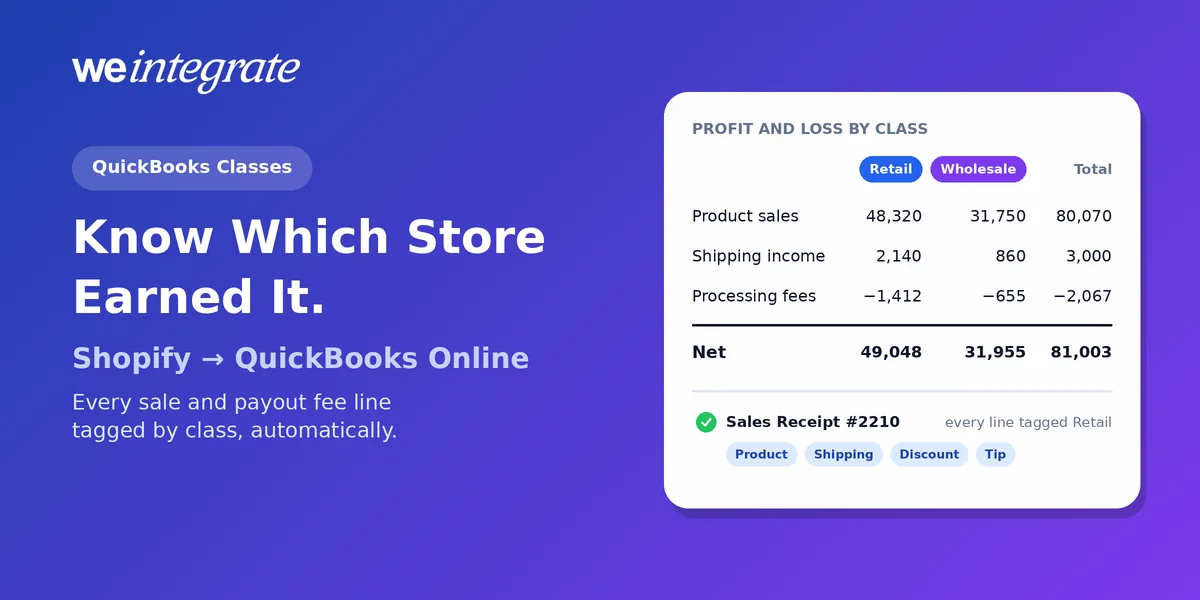
Run two Shopify stores into one QuickBooks Online company — a retail store and a wholesale store, say — and sooner or later someone asks the obvious question: which one is actually making money? QuickBooks Online has the answer built in. Classes let you tag every line of every transaction by store, channel, brand or department, then run a Profit and Loss by Class. The catch is that classes are only as good as the tagging behind them. WeIntegrate tags it for you: every Shopify order arrives in QuickBooks Online as a real transaction, instantly, with the classes you choose already on its product, shipping, discount and tip lines — and the same goes for the fee lines on every payout deposit.
Classes on every Shopify sale and on the fee lines of every payout in QuickBooks Online — set once per store, applied automatically, ready for a Profit and Loss by Class.
Start Your Free TrialTop 5 Reasons Your Shopify Store Should Use Classes in QuickBooks Online
- See which store actually makes money. Two stores, one QuickBooks company: give each store its own default class and a Profit and Loss by Class shows each store’s sales, costs and profit side by side — no splitting the books, no second company file.
- Compare retail and wholesale honestly. Direct-to-consumer and wholesale orders carry different prices, discounts and costs. Separate classes show which side of the business earns its keep, instead of one blended margin that hides both.
- Track product lines and brands. Put a class on each QuickBooks item — Candles, Gifts, Accessories — and every sale lands under its line, so you can see which collections drive profit, not just revenue. (Each store uses one approach for its product lines — the item’s own class or a store-wide default — so pick the split that matters most.)
- Know what shipping and promotions really cost. With shipping, discounts and payout fees each classed, you can see whether shipping pays for itself (shipping label fees are classed on the Professional plan and higher) and what each store gives away in promotions and processing fees — the costs that quietly eat margin.
- Hand your accountant reports they can use. Class reports give your accountant or bookkeeper segment results straight from QuickBooks Online — no spreadsheets rebuilt from Shopify exports every month.
There’s one condition for all five: every line has to carry the right class, every time.
A Class Report Is Only as Good as Its Lines
A class is a label QuickBooks Online lets you put on a line of a transaction (available on QuickBooks Online Plus and Advanced). Reports then split on it. That makes classes powerful — and fragile. Tag one store’s shipping income and forget the other’s, and your Profit and Loss by Class quietly lies.
A daily or weekly summary journal entry makes it harder still. It turns hundreds of orders into a few category totals, so even if each total carries a class, there’s no individual sale behind it to check. When a class figure looks off, there’s nothing to open — just a lump sum and a lot of detective work. And tagging Shopify sales by hand after the fact isn’t a plan anyone keeps up for long.
Every Line, Its Own Class
WeIntegrate records each Shopify order as its own QuickBooks Online document — a Sales Receipt (QuickBooks’ record of a sale paid on the spot) for retail, or an Invoice (the bill you send) for wholesale and terms customers — and puts the class on each line as it’s created. You choose the class for each kind of line, once, in your store’s settings:
- Products. Use the class already saved on each QuickBooks item, so a candle sells under Candles and a gift set under Gifts — or one default class for everything the store sells. (Track classes guide · item class by store)
- New products. When WeIntegrate creates a QuickBooks item for a product it can’t find, it can give the new item your class too.
- Shipping. With shipping as its own line item, shipping income gets its own class. (guide)
- Discounts. With discounts as their own line item, promotions get a class, so you can see what each store gave away. (guide)
- Tips. Tips in their own income account can carry their own class.
- Retail Delivery Fees. On the Enterprise plan, the Colorado and Minnesota Retail Delivery Fee lines can each carry a class.
Refunds follow the sale. A Refund Receipt (or a Credit Memo — a credit you owe the customer — for an Invoice) reuses the lines of the original sale, so a returned product comes back under the class it was sold with, and refunded shipping, discount and tip lines take the classes you set for them. Your class report stays balanced through returns without anyone touching it.
Payout Fees, Classed Too
Income is only half a Profit and Loss. WeIntegrate turns every Shopify payout into a real Bank Deposit in QuickBooks Online, assembled through QuickBooks’ own Undeposited Funds from the orders it pays — and the fee and deduction lines you choose can carry a class as well (adjustment and dispute lines stay unclassed):
- Processing fees, on every plan. (guide)
- Shipping label fees, marketplace sales tax, import tax and customs duty, each with its own class, on the Professional plan and higher — alongside their dedicated accounts. (customs duty guide · shipping labels · marketplace sales tax · import tax)
Choose a class just for one type of fee, or let it fall back to the class you set for processing fees. Either way, the costs of running each store land beside that store’s sales.
Several Stores, One QuickBooks Online Company: Classes or Not?
WeIntegrate connects more than one Shopify store to the same QuickBooks Online company — up to 2 stores on Basic, 3 on Growth, 5 on Professional and unlimited on Enterprise. That gives you one set of books, one chart of accounts and one login for your accountant, while each store keeps its own WeIntegrate settings, including its own Record Sales Type — Sales Receipts for a retail store, Invoices for a wholesale one.
The decision that’s yours is whether to use classes in that company:
- Without classes, every store’s sales, shipping and fees post to the same accounts. That’s perfectly valid books — and the right call if you only ever look at the business as a whole. Your Profit and Loss tells you how the business did.
- With classes, the same books split back apart on demand. Your Profit and Loss by Class tells you how each store did — and you can still run the combined report any time, because classes add a view without changing a single account.
If you choose classes, pick the split that answers your question:
- By store. Give each store one default class for its products — Retail for one, Wholesale for the other — and the same class on its shipping, discount, tip and payout fee lines. A Profit and Loss by Class then reads like a separate set of books per store, inside one company. (A class saved on a QuickBooks item follows that item to every store that sells it, so for a store split, use the store’s default class.)
- By product line, across stores. Use each item’s own class instead, and your report shows Candles against Gifts across every store combined — the better view when your stores sell the same catalog.
- Plus Location for a second view. Pair classes with each store’s own QuickBooks Online Location, and your reports can split by class and by Location.
Classes earn their place with a single store too: product lines, whether shipping pays for itself, what promotions cost and where processing fees land are all questions a Profit and Loss by Class answers.
Setting it up is quick:
- Turn on class tracking in QuickBooks Online and add your classes. If you don’t use classes, there’s nothing to do — every class setting in WeIntegrate is optional and off until you choose it.
- Pick your classes in WeIntegrate, per store, for the lines you care about. The class lists come straight from your QuickBooks company.
- Run a Profit and Loss by Class. Orders synced from then on arrive already tagged.
Why It Matters
Classes turn one set of books into a clear view of each part of the business. With WeIntegrate they’re applied to real transactions, line by line, the instant each order arrives — so a Profit and Loss by Class reflects today’s sales, and any figure in it can be opened down to the individual Sales Receipt, Invoice or deposit line behind it. Financial visibility for every store, every day, not just after month-end close.
Get Started
Start your free 15-day trial and connect Shopify to QuickBooks Online in about 10 minutes — then pick your classes once and let every sale and payout fee line arrive already sorted. No credit card required.
See Also
- Your Books, Your Rules: Inside WeIntegrate’s Sales & Deposits Settings — where the shipping and fee classes live.
- Shopify Shipping Fees Now Get Their Own QuickBooks Online Line Item — shipping income on its own line.
- Shopify Discounts Now Available as a QuickBooks Online Line Item — promotions you can measure.
- Shopify Tips Don’t Belong in Your Product Revenue — tips in their own income account.
- Every New Shopify Product Gets Its Own QuickBooks Online Item — new items, created automatically.
- Location Isn’t Just a Field — reporting by place, too.