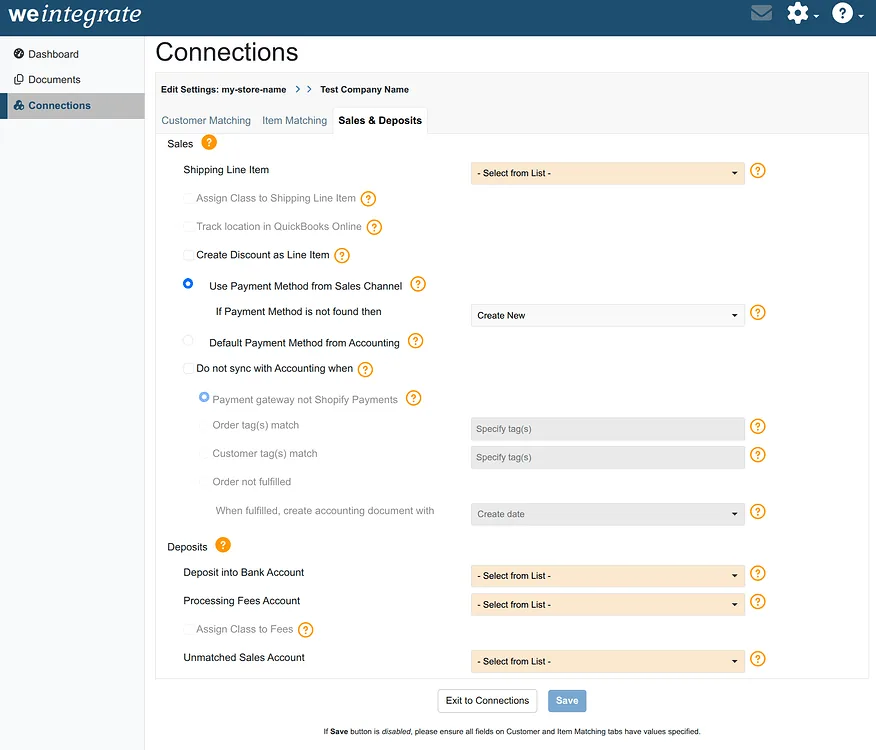
Real-time sync is only as good as the rules behind it. WeIntegrate moves every Shopify order into QuickBooks automatically — but your Sales & Deposits settings are what tell it exactly how to do that for your specific business. The right configuration means your books reflect your accounting structure from day one. The wrong defaults mean cleanup later.
Here’s what each setting controls and why it matters. For the full configuration walkthrough, the Sales & Deposits settings documentation in the WeIntegrate community covers every option in detail.
#1 trusted automated accounting integration and instant sync between Shopify and QuickBooks Online (QBO). Penny-accurate real transaction details, not batched error-prone summary journals.
Start Your Free TrialHow Your Sales Land in QuickBooks
Shipping Line Item
By default, QuickBooks Online has a native shipping field on Sales Receipts — but it comes with a significant limitation: it doesn’t allow selective control over sales tax on shipping, which creates discrepancies between what Shopify collected and what QuickBooks records.
WeIntegrate solves this by mapping Shopify shipping fees to a dedicated Service-type line item on each Sales Receipt instead. Shipping revenue appears as its own line, tax behaves correctly, and your shipping income is reportable and reconcilable — not buried in a QBO field that fights you at tax time.
Assign Class to Shipping
If your QuickBooks Online company uses class tracking, WeIntegrate can automatically assign a class to every shipping fee line item it creates. One setting, applied consistently to every transaction — no manual classification required.
Track Location
For businesses using QBO’s location tracking, WeIntegrate can automatically stamp a location on every Sales Receipt and Refund Receipt it generates. If your QuickBooks structure separates revenue by location — multiple warehouses, retail vs. online, different business units — this keeps your reporting clean without touching individual transactions manually.
Payment Method
Every Shopify order comes through a payment gateway, and WeIntegrate gives you two ways to handle how that translates into QuickBooks. You can map Shopify payment method names to existing QBO payment methods — with optional auto-creation for new ones — or always apply a single default method across all transactions. The right choice depends on how granularly your accountant wants to see payment data in QBO.
What Doesn’t Sync — and Why That’s a Feature
Not every Shopify order belongs in QuickBooks. Test orders, wholesale accounts handled outside your standard workflow, orders through payment gateways you reconcile separately — syncing these automatically creates noise in your books that takes time to clean up.
WeIntegrate’s conditional sync rules let you define exactly which orders should be held back: by payment gateway, order tag, customer tag, or fulfillment status. Orders that match your conditions stay visible in WeIntegrate but don’t create QuickBooks documents until you want them to. It’s one setting that replaces an ongoing manual cleanup task.
We covered conditional sync in depth in a dedicated post — worth a read if you manage any complexity beyond a single standard workflow.
How Payouts Connect to Your Bank
Deposit Bank Account
This is the setting that makes WeIntegrate’s payout reconciliation possible. By designating a default bank account for QuickBooks deposits, you tell WeIntegrate where each Shopify payout lands — and WeIntegrate automatically creates a real QBO Deposit, assigns the corresponding Sales Receipts and Refund Receipts to it, and posts it to the right account. Without this set, payout deposits can’t be created. With it, every payout is reconciled automatically.
Processing Fees Account
Shopify deducts payment processing fees from every payout before the net amount hits your bank. WeIntegrate captures those fees and needs to know which QuickBooks expense account to post them to. Set this once and every payout deposit in QuickBooks will automatically show the gross amount, the fee deduction, and the net — explaining exactly why your QBO deposit matches your bank deposit down to the penny.
Assign Class to Fees
If you use class tracking in QBO, processing fees can carry a class assignment just like line items and shipping. This keeps your fee expenses properly categorized for reporting without any manual entry on individual deposit records.
Unmatched Sales Account
Occasionally a Shopify payout includes a transaction that WeIntegrate can’t match to an existing Sales Receipt — an edge case from timing, order state, or a transaction that came through outside the standard sync flow. Rather than leaving a gap in the deposit, WeIntegrate posts the unmatched amount to a designated income account you specify, keeping the deposit balanced and flagging the item for review. Your books stay complete; nothing falls through the cracks.
One Settings Page, Your Entire Accounting Structure
Every setting in Sales & Deposits maps to a specific part of how your Shopify business generates revenue and moves cash. Get them configured correctly once — matching your existing QBO chart of accounts, class structure, and location setup — and WeIntegrate handles every order, refund, and payout automatically from there.
The full Sales & Deposits settings documentation walks through every option with step-by-step configuration guidance.
Start your free 15-day trial and configure your Sales & Deposits settings in under 15 minutes. No credit card required.