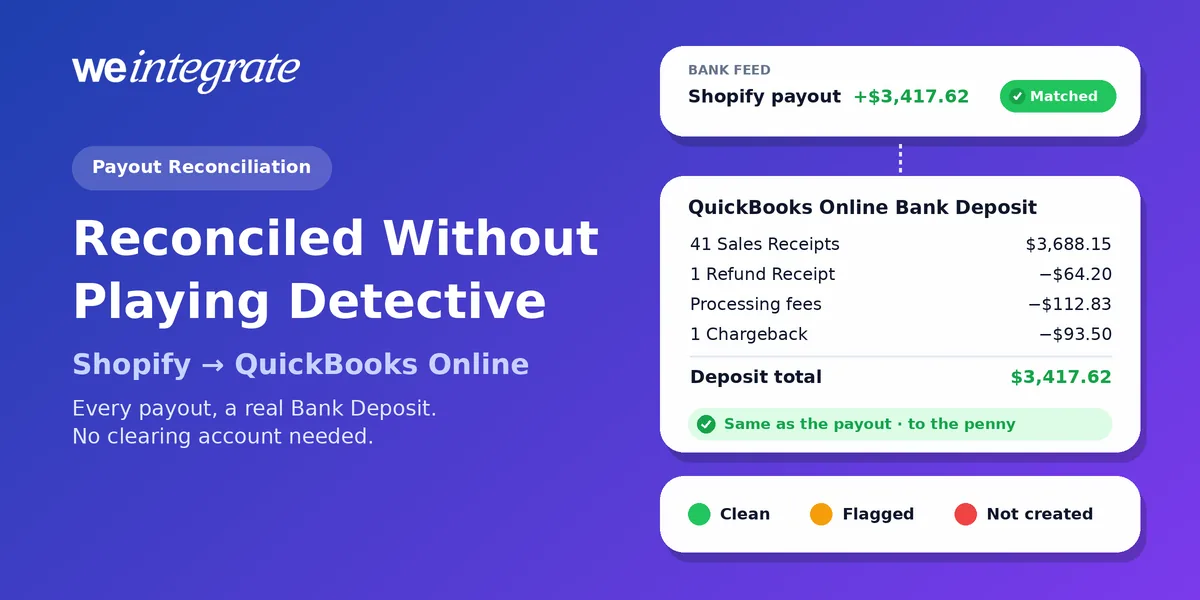
A deposit from Shopify shows up in your QuickBooks Online bank feed — the transactions QuickBooks pulls in from your bank — for $3,417.62. Now someone has to prove what it is — that’s Shopify payout reconciliation. Which orders does it pay for? What came out for fees? Was there a refund in there, or a chargeback? With most ways of keeping Shopify books, that proof is a job someone does by hand, often at month-end, often with a spreadsheet open. With WeIntegrate, the proof builds itself: every payout becomes a real Bank Deposit for exactly what Shopify paid, made of the actual sales, refunds and fees inside it, to the penny — so matching it is the whole job.
Every Shopify payout in QuickBooks Online as a real Bank Deposit — sales, refunds and fees already inside it, to the penny. Reconciling becomes a glance.
Start Your Free TrialReconciling, in Plain Words
Reconciling just means proving that every dollar your bank received is explained in your books, and that nothing is missing or counted twice.
Shopify adds a twist. It collects your customers’ money, keeps its fees, takes back refunds and chargebacks (when a customer disputes a card charge), and pays you later for a whole group of orders at once. Your sales happened when the orders did; the payout is just the money arriving. That’s why we say payouts aren’t your sales — they’re deposits. Your books need both, and they need to agree.
The Long Way Around
How hard reconciling is depends almost entirely on what your integration — or your spreadsheet — put into QuickBooks in the first place.
If your sales arrive as summary journal entries (one lump-sum accounting entry standing in for a day’s, a week’s or a payout’s worth of orders), there’s no list of sales for the deposit to be made of. So the usual fix is a clearing account — sometimes called a wash account — a temporary holding account that sales go into and payouts come out of. Zero means the totals agree — not that any one order is right.
And when it isn’t zero, someone has to go looking:
- Which payout is off? The balance says something is; it doesn’t say where. You scroll the register, entry by entry.
- Which order, which refund, which fee? The summary has the total, not the order. Back to Shopify to export, filter and compare.
That’s the month-end detective work bookkeepers dread — the reason a lump-sum close can take a dozen steps before anyone trusts a single report. WeIntegrate doesn’t need a clearing account at all, and we’ve explained why others still do.
What WeIntegrate Built for That $3,417.62
Here’s that payout as a WeIntegrate Bank Deposit in QuickBooks Online:
- 41 Sales Receipts — QuickBooks’ record of a sale paid on the spot, one for every order in the payout: $3,688.15
- 1 Refund Receipt, tied to the sale it reverses: −$64.20
- Processing fees, recorded in your fees account: −$112.83
- 1 chargeback, on its own line: −$93.50
- Deposit total: $3,417.62 — the same as the payout, to the penny
Every one of those lines is a real transaction you can open. Click a Sales Receipt and you see that order’s products (or your default catch-all item), shipping, discount and tax. Click the refund and you see which sale it reversed. Nothing is a lump, and nothing is guessed.
Stores that sell wholesale on terms (customers pay later) get the same treatment with their own documents: an Invoice (the bill you send), the Payment that settles it, and a Credit Memo (a credit you owe the customer) when something comes back.
Three things make it work without anyone touching it:
- The sales are already there. WeIntegrate sends every Shopify order to QuickBooks Online the moment it’s placed, so the deposit only has to gather sales QuickBooks already has.
- QuickBooks’ own Undeposited Funds (its holding account for money not yet in the bank) carries each sale until its deposit is built — the standard QuickBooks way to group payments into one deposit, with no extra account to create or clear out.
- Fees go where they belong. Processing fees land in your fees account, so your profit reflects what selling actually cost. Depending on your plan, shipping label costs and the marketplace sales tax Shopify collected and paid to the state for you can each get their own line and their own account too — that tax goes to a liability account (money you’re holding for someone else), never your income.
From Bank Feed to Reconciled
WeIntegrate builds each deposit automatically — weekly, daily or several times a day, depending on your plan. Once it’s there and the payout reaches your bank feed, the rest is short:
- Match. QuickBooks will usually suggest the WeIntegrate deposit, because it’s one record for the whole payout with the same amount. If it doesn’t, Find other match brings it up. QuickBooks itself says matching links a bank transaction to a record you already created and “prevents duplicate entries”.
- Reconcile. When you reconcile the bank account against your statement in QuickBooks, every Shopify payout is already one matched deposit, so it ticks through cleanly.
No spreadsheet, no export, no account to zero out.
When a Payout Doesn’t Add Up
WeIntegrate compares every Shopify payout with the deposit it built and marks it green when they agree, amber when something is different, and red when the deposit couldn’t be created — so nobody has to dig through payouts that are fine.
Depending on your plan, opening a flagged payout takes you into the game-changing 3-way Shopify Payout to QuickBooks Online Bank Deposit Report: the Shopify payout, the QuickBooks Online deposit and a special-handling panel side by side, cross-linked by line and order number, so you follow the difference straight to the order or fee involved. We haven’t found anything like it in another integration. See what the report shows.
Month-End Becomes a Quick Review
Closing the month means confirming your books are right before you run reports or hand them to your accountant. With every payout already a real Bank Deposit and every status already set, it’s a short routine: scan the statuses, open anything flagged, match the bank feed, reconcile. No clearing account to zero out, no export to compare, no detective work required.
For the business owner, that means an answer in minutes instead of a question for your accountant. For the bookkeeper or accountant, it means books where every payout traces to its deposit and every deposit to the orders inside it. And because orders land instantly and each payout becomes a deposit automatically, your sales and P&L (profit and loss) stay current all month, with your deposits following close behind. That’s financial visibility every day, not only after close.
Set It Up Once, in About 10 Minutes
You don’t need to learn reconciling to get reconciled books. Setup is short:
- Start your free trial — 15 days, no credit card.
- Connect Shopify and QuickBooks Online through the setup wizard.
- Choose your bank — pick the account your payouts land in with Deposit into Bank Account, and route sales and refunds through Undeposited Funds (Deposit Payment To shows how).
- Confirm your fee accounts — processing fees, plus any others your plan includes.
- Let the payouts come in — each one becomes a real Bank Deposit, ready to match.
Choosing between integrations? Our one-order test shows what to ask before you install anything. WeIntegrate supports QuickBooks Online in the United States, Canada, the United Kingdom and Australia, plus the Global edition for more countries. See how Shopify payouts become QuickBooks deposits, or compare plans on our pricing page.
Get Started
Start your free 15-day trial and connect Shopify to QuickBooks Online in about 10 minutes — then watch your next Shopify payout land as a Bank Deposit that already lists its own sales, refunds and fees, to the penny. No credit card required.
See Also
- Reconciling Shopify Payments Automatically — Our Earlier Guide
- Clearing Accounts, Be Gone. WeIntegrate Doesn’t Need Them. Why Do Others?
- Month-End Close That’s a Breeze — No Detective Work Required
- The Enhanced 3-Way Shopify Payout to QuickBooks Online Deposit Report
- Phantom Sales: Are Your QuickBooks Online Sales Built From Payouts?
- Trace Any Shopify Order in QuickBooks Online in Seconds