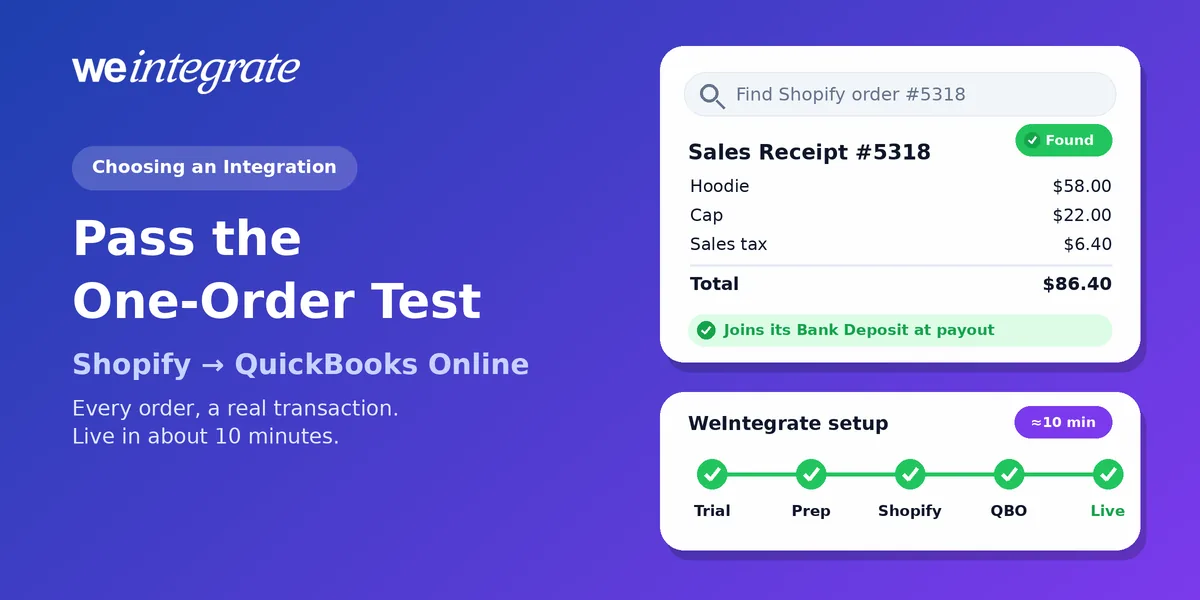
Before you pick a Shopify bookkeeping integration, try one thing. Take any order from this morning — say #5318, a hoodie and a cap for $86.40 — and ask the vendor a single question: where will I find that order in QuickBooks Online, and when? Some tools answer “inside tonight’s summary.” Others answer “once Shopify pays you out.” Both answers mean the same thing: the order itself never arrives, only a total that includes it. WeIntegrate’s answer is “right now, as its own real transaction — and, once Shopify pays it out, as its own line on a real Bank Deposit, to the penny.” That one question is the fastest way to separate an integration that keeps your books from one that summarizes them.
Pass the one-order test on your own store — every Shopify order a real QuickBooks Online transaction the moment it happens, live in about 10 minutes.
Start Your Free TrialJudge an Integration by What It Writes, Not What It Promises
Almost every Shopify app for QuickBooks promises to “connect” the two. That word hides very different results. Strip away the marketing and there are three ways an integration can write your books:
- Summary journal entries on a schedule (one lump-sum accounting entry standing in for many orders). Once a day or once a week, the tool adds up everything that happened and posts one lump-sum entry. Your numbers are always yesterday’s — or last week’s.
- Payout-driven summaries. The tool waits for Shopify to pay you, then posts one summary per payout. Nothing reaches QuickBooks until the money moves, and what arrives is a set of totals. We call those phantom sales: revenue you can see but no individual sale you can open. Remember: payouts aren’t your sales — they’re deposits.
- Real transactions, instantly. Every order becomes its own document in QuickBooks Online the moment it’s placed, and every payout becomes a real Bank Deposit built from those documents. This is how WeIntegrate works.
The first two can get the totals right. What they lose is everything behind the totals: which customer bought, which products were on which order, what tax was charged on which order, and which refund reversed which sale. That loss shows up later — as inventory QuickBooks can’t count, as refunds you can’t tie to a sale, and as a month-end close that turns into detective work.
Five Questions That Pick the Winner
Make this your best practice before you install anything: put these questions to every integration you’re considering. They take minutes, and they can save you a lot of cleanup later.
1. Can I open the order — and watch it change?
Ask to see one Shopify order as its own document in QuickBooks Online — not a line inside a journal entry. With WeIntegrate, retail and direct-to-consumer orders arrive as a Sales Receipt (QuickBooks’ record of a sale paid on the spot), and a return arrives as a Refund Receipt tied to the sale it reverses. Wholesale orders on terms arrive as an Invoice (the bill you send), followed by a Payment and, when needed, a Credit Memo (a credit you owe the customer). Each one lands instantly, with the customer and products (or your default catch-all, if you choose), shipping, discounts and tax. And when the order changes in Shopify — a refund, or a cancellation after payment — QuickBooks gets its own Refund Receipt or Credit Memo, tied to the sale, not a correction buried in next week’s summary. Here’s why every Shopify order belongs in QuickBooks Online.
2. Can I follow the money to the bank?
Shopify doesn’t pay you order by order — it pays in batches, after taking its cut. Ask how the integration shows you what each batch was made of. WeIntegrate turns every Shopify payout into a real QuickBooks Online Bank Deposit that holds the actual orders inside it, plus the fees, credits, debits, chargebacks and disputes (when a customer disputes a card charge), to the penny. It’s built through QuickBooks’ own Undeposited Funds (its holding account for money not yet in the bank), so there’s no extra account to clean out. See how Shopify payouts become QuickBooks deposits.
3. Does the tax match what Shopify charged?
Your sales tax return should be built from what your store actually collected. WeIntegrate carries the exact tax Shopify charged on each order, with the Ship-To address and your Location, so QuickBooks Online reports it order by order instead of from a lump sum. More on Shopify sales tax in QuickBooks Online.
4. Does it fit the way I sell?
Your books should follow your business, not the other way round. Look for:
- Retail and wholesale in one company — WeIntegrate’s Record Sales Type is set per store: Sales Receipts for retail, Invoices for B2B and terms. Here’s how B2B and B2C share one QuickBooks Online company.
- Your level of detail — track every buyer and product individually, or roll sales into one default catch-all customer and item (bulk). Either way, every total still reconciles.
- Several stores — connect more than one, each with its own settings.
- Rules for exceptions — Conditional Sync Rules skip the orders that don’t belong in your books, such as orders with a total of 0.00. And when names don’t line up word for word, advanced matching rules send each order to the right place: Customer Matching Advanced Rules put a wholesale buyer’s orders on their existing QuickBooks customer, and Item Matching Advanced Rules land each product on the right QuickBooks item by name or SKU. You write each rule as a plain sentence and preview it before it touches your books.
5. Can a mismatch hide?
Ask what happens when a payout and a deposit don’t agree. In WeIntegrate, every payout gets a status — green when it’s clean, amber when there’s a discrepancy, red when the deposit couldn’t be created. The game-changing 3-way Shopify Payout to QuickBooks Online Bank Deposit Report puts the payout, the deposit and a special-handling panel side by side, cross-linked by line and order number. No other integration we know of shows you this. Here’s what the report shows.
Live in About 10 Minutes: Five Steps
Choosing well is the hard part. Setting up WeIntegrate isn’t — there’s no field-mapping marathon and no consultant required.
1. Start your free trial
Fifteen days, no credit card. You test on your own store, with your own orders.
2. Get QuickBooks Online ready
Before you connect, turn on sales tax and shipping, check a few accounts, and create at least one customer and one product (placeholders are fine). Our Start Smart checklist lists every item.
3. Connect Shopify
The setup wizard sends you to Shopify to approve the connection. You never share a password, and you can remove access any time.
4. Connect QuickBooks Online and choose your detail
Pick your QuickBooks Online company, choose Sales Receipts or Invoices for the store, and decide how to match customers and items — individually or into a default catch-all. Review the accounts your sales, shipping, tax and fees land in, and point deposits and refunds at Undeposited Funds.
5. Go live
That’s it. New orders start reaching QuickBooks Online instantly, and payouts arrive automatically as real Bank Deposits. Need past orders too? Once you subscribe, our team can bring them in with historical order sync.
What You Get on Day One
The payoff of choosing an integration that passes the one-order test is financial visibility, instantly — every day, not only after month-end close.
- Reports you can trust today. Your P&L, Balance Sheet and A/R (what customers owe you) reflect this morning’s orders, not last week’s summary.
- Inventory that moves. For products you track individually and set up as inventory items in QuickBooks Online Plus or Advanced, quantities come down as each order syncs.
- Answers in seconds. A customer question, a refund, a payout that looks short — open the transaction and trace it back to Shopify.
- Month-end in three quick checks. The work is done as it happens, so closing the month (confirming your books are right before you run reports or hand them to your accountant) is a review, with no detective work required.
WeIntegrate supports QuickBooks Online in the United States, Canada, the United Kingdom and Australia, plus the Global edition for more countries. Compare plans on our pricing page or see every feature.
Get Started
Start your free 15-day trial and connect Shopify to QuickBooks Online in about 10 minutes — then open this morning’s orders in QuickBooks and see each one for yourself. No credit card required.
See Also
- The Lump-Sum Myth: Every Shopify Order Belongs in QuickBooks Online
- Phantom Sales: Are Your QuickBooks Online Sales Built From Payouts?
- Month-End Close That’s a Breeze — No Detective Work Required
- Clearing Accounts, Be Gone. WeIntegrate Doesn’t Need Them. Why Do Others?
- The Enhanced 3-Way Shopify Payout to QuickBooks Online Deposit Report
- One QuickBooks Online Company, Both B2C and B2B