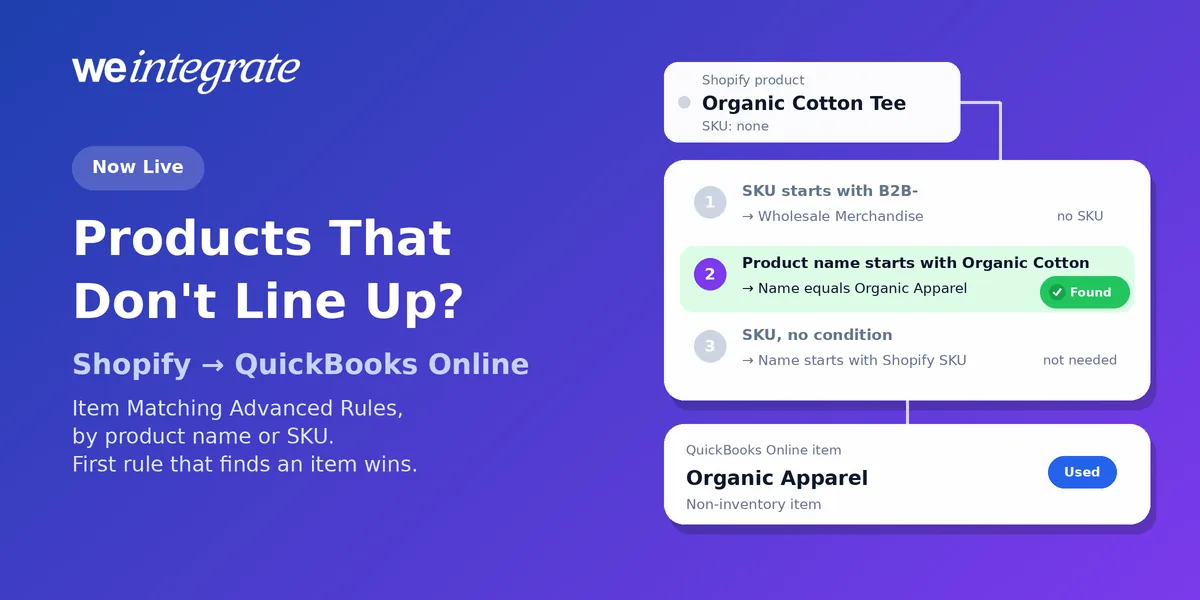
Your QuickBooks Online item list rarely started with Shopify. Maybe your Shopify product names are written for shoppers — “Organic Cotton Tee” — while your accountant groups them under one QuickBooks item called “Organic Apparel”. Maybe your QuickBooks items carry a code in front of the name, your wholesale line uses a supplier SKU prefix, or every engraving add-on should land on one service item. Whether you match by product name or by SKU, exact matching can’t bridge those gaps, so the line either goes to a catch-all item or creates a new one you didn’t want. Starting today, it doesn’t have to: Item Matching Advanced Rules are live, so every product on every Shopify order lands on the right QuickBooks Online item, instantly — without renaming a single product, SKU or item. Launched alongside customer matching’s advanced rules, they had been in preview with select customers since September 30.
Every Shopify product on the right QuickBooks Online item the moment it sells — real transactions, real sales by product, reconciled to the penny.
Start Your Free TrialWhy the Right Item Matters
An integration that posts a daily summary or a lump sum per payout never tells QuickBooks which products sold. Sales by product disappear into one number, and so does any chance of QuickBooks tracking your stock.
WeIntegrate records every Shopify order as its own real transaction, with each product on its own line and its own QuickBooks Online item. The item decides which income account the sale goes to and what your sales-by-product report shows. And when the item is set up as an inventory item in QuickBooks Online Plus or Advanced, the item is how QuickBooks knows to reduce the quantity on hand as it sells. Put a product on the wrong item and every one of those numbers drifts.
Standard Matching Still Covers Most Stores
WeIntegrate’s standard item matching pairs a Shopify field — Product Name, SKU, or SKU + Variants — with a QuickBooks SKU or Product Name, and capital letters don’t matter. When nothing matches, WeIntegrate creates the item for you or records the line on one default catch-all item. If your Shopify product names or SKUs already agree with your QuickBooks items, that’s all you need — and when you match by SKU, it stays as dependable as your SKUs are clean.
The Same Simple Editor, Built for Products
Item rules use the same sentence-style editor as customer rules, with product fields. On the Shopify side you test the product name, the SKU, or the SKU plus its variant. On the QuickBooks side you look for an item by name or by SKU. Each side can use equals, starts with, contains, ends with, or a wildcard pattern — an asterisk stands in for any run of characters, a question mark for a single one. A rule can also skip the Shopify condition (no condition), and the QuickBooks side can search with the Shopify value itself (Use Sales Channel value). Capital letters don’t matter. Rules work when you match each item individually; they aren’t used when one default catch-all item takes everything. Each store gets up to 10 item rules.
Rules a Merchant Might Write — by Product Name or SKU
1. A whole product line on one item. Your wholesale SKUs all begin with B2B-, and your accountant wants them on one “Wholesale Merchandise” item.
When SKU starts with
B2B-, match Name equalsWholesale Merchandise.
2. A collection by product name. Your organic line is named “Organic Cotton Tee”, “Organic Cotton Hoodie” and so on in Shopify, and your accountant wants it on one “Organic Apparel” item — no SKUs needed.
When Product name starts with
Organic Cotton, match Name equalsOrganic Apparel.
3. An add-on product on a service item. You sell engraving as its own add-on product in Shopify, and you record it as a service.
When Product name contains
engraving, match Name equalsEngraving Service.
4. A family of sizes with a wildcard. Your candle SKUs look like CAN-LAV-16OZ and CAN-CED-16OZ.
When SKU matches
CAN-*-16OZ, match Name equalsCandles 16 oz.
5. One broad rule for how your QuickBooks items are named. Pick the one that fits your item list:
-
Items named after the product with extra words, such as “WEB - Trail Runner Socks”:
With no condition on Product name, match Name contains the Shopify value (click Use Sales Channel value).
-
Items that start with the SKU, such as “TR-2207 Trail Runner Socks”:
With no condition on SKU, match Name starts with the Shopify value (click Use Sales Channel value).
Because a rule with no condition applies to every line, it goes last, after the narrower rules above it have had their turn. That’s the one habit to keep: WeIntegrate tries rules from the top down and stops at the first one that finds a QuickBooks item, so specific rules belong above broad ones.
What Happens When No Rule Finds an Item
Rules always run first. If none of them finds an item, your standard Match on pair gets its turn, and after that your “If Product is not found then” setting — create a new item or use your default catch-all item — exactly as it worked before. A few details keep it tidy:
- New items are still named the standard way. Rules only look up existing items; if WeIntegrate creates one, its name or SKU comes from your Match on fields.
- Broad patterns can fit several items. A rule using starts with, contains, ends with or a wildcard says so on screen, and the first item alphabetically by name is the one used.
- Missing details skip a rule. A rule that needs a SKU is passed over for a product without one, and the next rule is tried.
- Gift cards are untouched. Gift card lines still go to the item you mapped for gift cards.
Try a Product Before Any Order Does
Type a product name or SKU into Test a value to see which of your rules it would trigger. Then Preview a single rule, or the whole list, to see the QuickBooks items it would land on — each with its type (service, inventory, non-inventory or bundle), SKU and active status, and the winner flagged Used. Once you save, the rules switch on within a few minutes; until the status reads Active, orders simply use your standard match. A few accounts need a quick one-time setup before rules can run — if yours does, the button says so, and our support team enables it on request.
Rules apply to orders synced after you save, and the full walkthrough is in the item matching guide.
More Power, Same Simplicity
We haven’t found another Shopify to QuickBooks Online integration that can find existing items with product name and SKU patterns like these. And yet nothing changes unless you want it to: no rules, no difference. When you do need one, it’s a sentence, a preview, and a save — and your QuickBooks Online keeps showing real sales by product, the right income accounts, and inventory that moves as it sells.
Every Shopify payout still becomes a real Bank Deposit in QuickBooks Online made from those orders, reconciled to the penny on the three-way Shopify Payout to QuickBooks Online Bank Deposit Report.
Which Plans Include It
You’ll find Item Matching Advanced Rules on the Professional and Enterprise plans, and you can try them during any free trial. Every plan keeps standard item matching, unique or one default catch-all item, along with automatic item creation. WeIntegrate supports QuickBooks Online in the US, Canada, the United Kingdom and Australia, plus the Global edition.
Get Started
Start your free 15-day trial and connect Shopify to QuickBooks Online in about 10 minutes — every product on the right item the moment it sells, with sales by product you can trust. No credit card required.
See Also
- The Right QuickBooks Customer, Every Order: Advanced Rules Are Live — the same rules, for customers.
- More Control, Still Simple: Advanced Matching Rules Now in Preview — the preview this release came from.
- Nothing Charged? Keep 0.00 Shopify Orders Out of QuickBooks Online — the new Order total is 0.00 rule.
- Your Products, Your Way: How WeIntegrate’s Item Matching Works — the standard matching these rules build on.
- A Shopify SKU Problem Doesn’t Just Break Item Matching — why clean SKUs still pay off.
- Your Price Tag Tells Half the Story — Know Your Real Landed Cost — why product-level sales matter for margin.