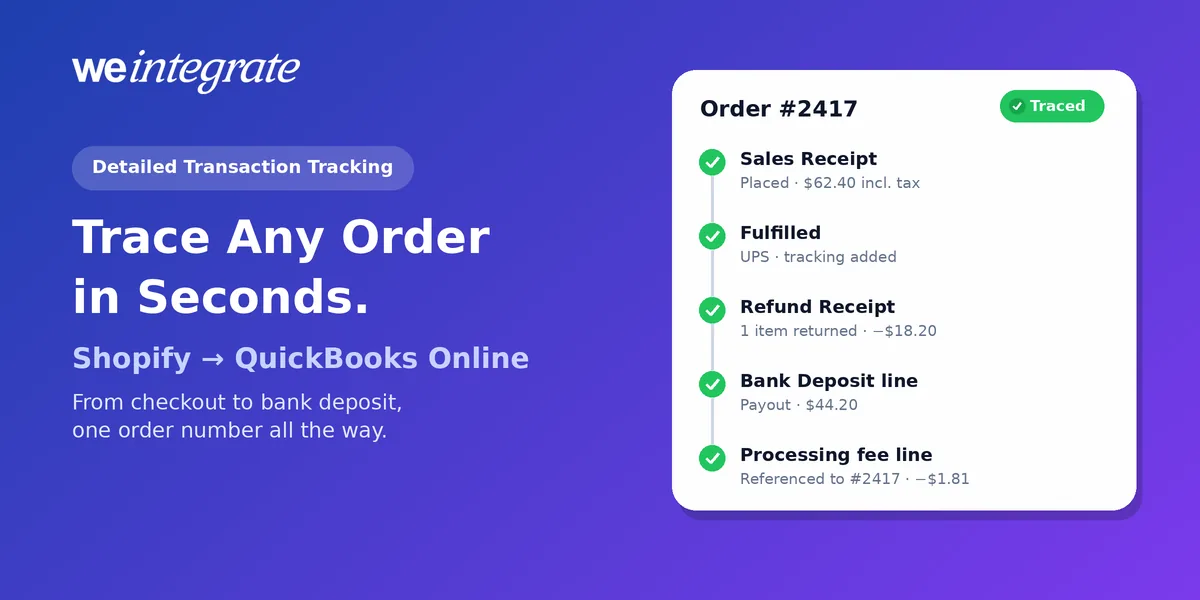
A customer emails about order #2417. Your accountant asks why Tuesday’s deposit came in $18.40 light. A state auditor wants the sales behind your June filing. Three different questions — and in most Shopify setups, each one starts the same way: export, search, cross-reference, guess. With WeIntegrate, every Shopify order arrives in QuickBooks Online instantly as a real transaction that carries its order number, so you can trace any sale from checkout to bank deposit in seconds, to the penny.
Every Shopify order, refund and fee in QuickBooks Online with its own order number — trace any sale from checkout to bank deposit in seconds.
Start Your Free TrialWhy “Where Did That Order Go?” Is So Hard to Answer
Most of the time the order is in your books — just not anywhere you can point to. Integrations that post a daily or weekly summary journal entry, or wait for a payout and book one total, keep the money and lose the trail. One line says “Shopify sales, July 28”. Order #2417 is somewhere inside it, along with 300 others.
That’s fine until anyone asks a specific question:
- A customer asks about a charge — there’s no document in QuickBooks with their name on it.
- A refund doesn’t look right — the return was netted into a later summary, so there’s nothing tying it back to the sale it reversed.
- A payout comes in short — the fee, chargeback or adjustment that explains it is buried in a lump sum with no order attached.
We’ve called this the lump-sum myth: the totals can be right while every individual sale disappears. And some setups hide it further, washing the summary through a clearing account that only proves the numbers cancel.
One Order, Followed All the Way Through
Here’s what order #2417 looks like when WeIntegrate records it. Every step is its own real QuickBooks Online document, and the Shopify order number travels with each one.
1. The sale. The moment the order is placed, it becomes a Sales Receipt (QuickBooks’ record of a sale paid on the spot) — or, for a wholesale customer on terms, an Invoice (the bill you send) — with the customer, every product line, discounts, shipping and the exact sales tax Shopify collected.
2. The shipment. When you fulfill it in Shopify, the same Sales Receipt or Invoice updates automatically with the ship date, carrier and tracking number. One document, the whole story.
3. The return. If the customer sends something back, a Refund Receipt — or a Credit Memo for an Invoice — is created and tied to the sale it reverses, with the tax reversed exactly as Shopify refunded it. See how refunds sync.
4. The payout. When Shopify pays you, the payout becomes a real Bank Deposit in QuickBooks Online, built through QuickBooks’ own Undeposited Funds. Order #2417 is a line on that deposit. So is its processing fee — recorded as its own expense line and referenced to the order — alongside any chargeback, dispute or adjustment, each on its own line.
5. The proof. On the Growth plan and higher, the three-way Shopify Payout to QuickBooks Online Bank Deposit Report puts Shopify’s payout, the QuickBooks deposit and any special-handling lines on one screen, matched to each other by line number and order number. If something doesn’t match, the payout is flagged and the line that caused it is highlighted.
Search QuickBooks Online for the order number and you find the sale and anything that reversed it; open the payout’s deposit and the order is right there on its own line — no export, no spreadsheet.
What Detailed Tracking Gives You
- Answers in seconds. Customer questions, refund questions and payout questions all start from one order number.
- Customers you can actually see. Track every Shopify buyer as their own QuickBooks customer for full sales history — or record every sale under one default catch-all customer (bulk) if you prefer a lean customer list. Either way, each order keeps its own document.
- Products you can report on. Map each Shopify product to its own QuickBooks item for sales by product, or use one default catch-all item per store (bulk). The order detail is there either way.
- Fees you can explain. Every processing fee sits on the deposit next to the order that caused it, so “why was this payout short?” has a line-by-line answer. Reconciliation stops being a hunt.
- Retail and wholesale, side by side. Sales Receipts for retail and Invoices, Payments and Credit Memos for wholesale can live in one QuickBooks Online company, each traceable the same way.
- An audit trail that is the documentation. When an accountant, a lender or a tax authority asks for support, the individual documents are the support — not a reconstruction.
Tracking You Can Watch, Too
You don’t have to open QuickBooks to see where an order stands. WeIntegrate’s Operational Dashboard shows five document views — Open Sales, Fulfilled Sales, Cancellations, Refunds and Payouts — each with its sync status and daily and month-to-date totals, across every connected store.
Get Started
Lump sums keep the total and lose the story. WeIntegrate keeps both: every Shopify order a real transaction with its order number, every refund tied to its sale, every fee on the deposit next to the order that caused it — instantly, to the penny, and financial visibility every day, not just after close. WeIntegrate supports QuickBooks Online in the US, Canada, the United Kingdom and Australia, plus the Global edition.
Start your free 15-day trial and connect Shopify to QuickBooks Online in about 10 minutes — every order traceable from checkout to deposit. No credit card required.
See Also
- The Lump-Sum Myth: Every Shopify Order Belongs in QuickBooks Online — why summaries lose the detail.
- Sync Shopify Refunds to QuickBooks Online Automatically — refunds tied to the sales they reverse.
- WeIntegrate’s Enhanced 3-Way Shopify Payout to QuickBooks Online Deposit Report — every payout line, cross-linked by order.
- How to Reconcile Shopify Payments in QuickBooks Online — Automatically — payouts as real Bank Deposits.
- Clearing Accounts, Be Gone — why a zero balance proves so little.
- One QuickBooks Online Company, Both B2C and B2B — retail and wholesale, traced the same way.