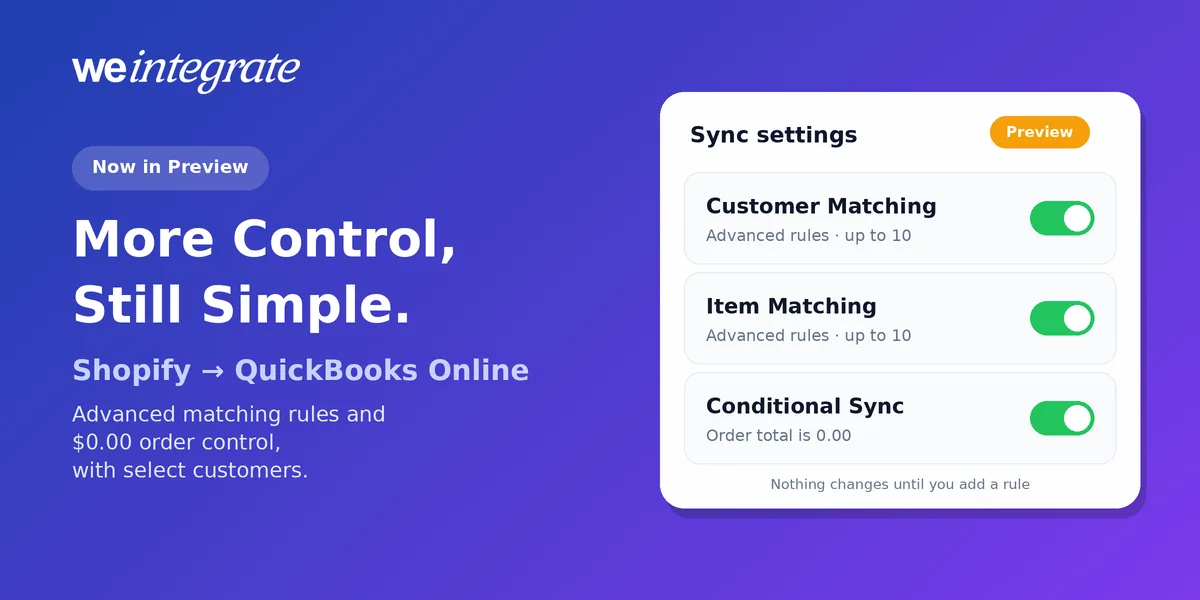
Most Shopify stores never need more than WeIntegrate’s standard matching: pick a Shopify field, pick a QuickBooks Online field, and every order lands on the right customer and every product on the right item, instantly. But no business is only the standard case. There’s the wholesale account your QuickBooks calls “Bluepeak Outfitters - Wholesale”, the product codes your supplier invented that QuickBooks never used, and the free samples that each turn into a $0 document. Starting today, three new capabilities are in preview with select customers — Customer Matching Advanced Rules, Item Matching Advanced Rules, and a new “Order total is 0.00” conditional sync rule: fine-grained control for the exceptions, with the same set-it-once simplicity for everything else.
Every Shopify order in QuickBooks Online the moment it happens, on the right customer and the right item — real transactions, reconciled to the penny.
Start Your Free TrialMatching Is Where Real Books Begin
Matching sounds like plumbing. It’s actually the reason your QuickBooks Online is worth opening.
Integrations that post your sales as a daily summary or a lump sum per payout skip the question entirely: there’s no customer and no product to match, just a total. That’s why those books can’t show you who your repeat buyers are, what a wholesale account owes you, or which products are selling.
WeIntegrate records every Shopify order as its own real transaction — a Sales Receipt (QuickBooks’ record of a sale paid on the spot) or an Invoice (the bill you send a customer on terms). Each one sits on a real customer, with each product on a real item. Matching is the step that decides which customer and which item. Get it right and everything downstream — customer history, sales by product, inventory, sales tax by order — just works.
For most stores, the standard settings already get it right: customers matched individually by email or name, products matched by SKU or name, or everything rolled into one default catch-all customer and item (bulk) if you prefer. The preview is for the cases where an exact one-to-one match isn’t enough.
What’s in the Preview
Customer Matching Advanced Rules
Write up to 10 short rules that read like sentences: when something about the Shopify customer is true, match a QuickBooks customer that looks like this. For example:
- Everyone from one wholesale account, one customer. When the email ends with
@bluepeakoutfitters.com, match the QuickBooks customer named “Bluepeak Outfitters”. - Your naming, not Shopify’s. Take the Shopify company name and match the QuickBooks customer named after it, followed by “ - Wholesale”.
- Staff orders kept apart. When the email ends with your own store’s domain, match “Staff Purchases”.
Rules can look for text that starts with, contains, ends with or equals a value, or use a simple wildcard where * means “anything here”. They work on your primary match and, if you use one, your secondary match too.
Item Matching Advanced Rules
The same idea for products. When a SKU starts with B2B-, record it on your “Wholesale Merchandise” item. When a product name contains “engraving”, use your “Engraving Service” item. And when your QuickBooks item names begin with the SKU — “TR-2207 Trail Runner Socks” — a rule can find them by that code, without renaming a single item.
“Order total is 0.00”
A new choice under Conditional Sync Rules. Free samples, giveaways and 100%-off replacements are real Shopify orders with a $0.00 total. By default WeIntegrate records them like any other order. Turn this on and they stay in WeIntegrate, visible and marked “Accounting Not Sync”, without creating a $0 document in QuickBooks Online.
Built to Stay Dead Simple
More power usually means more settings to get wrong. These were designed the other way around:
- Nothing changes until you add a rule. Your current matching keeps working exactly as it does today.
- Rules read like sentences, so you can see what each one does at a glance.
- First rule that finds a match wins. Rules are tried top to bottom, and you reorder them with up and down arrows — no priority numbers to manage.
- Rules find, they never create. If no rule finds a QuickBooks record, WeIntegrate falls back to your standard match (and, for customers, your secondary match) and then to your “not found” setting — create a new customer or item, or use your default catch-all — exactly as before.
- Check before you save. “Test a value” shows which rules would apply to an email or SKU you type, and “Preview” lists the actual QuickBooks customers or items a rule would find, with the one an order would get marked Used.
- One place, everywhere. The same rules appear in the setup wizard and in your connection settings.
Who Gets It
When these features are generally available, Customer and Item Matching Advanced Rules come with the Professional and Enterprise plans, and the “Order total is 0.00” rule is part of Conditional Sync Rules on Growth and up. All three are included in every free trial. Standard customer and item matching — unique or one default catch-all — stays on every plan.
Joining the Preview
We’re running the preview with a small group of merchants to tune the details before a broad release, which we’re planning for early October. If you’re a WeIntegrate subscriber with a matching or $0-order headache you’d like to solve, contact our support team and ask to be considered.
Whatever your setup, WeIntegrate supports QuickBooks Online in the US, Canada, the United Kingdom and Australia, plus the Global edition.
Get Started
Start your free 15-day trial and connect Shopify to QuickBooks Online in about 10 minutes — every order on the right customer and the right item, instantly, with every payout a real bank deposit reconciled to the penny. No credit card required.
See Also
- Your Customers, Your Rules: How WeIntegrate’s Flexible Customer Matching Works — unique or bulk, primary and secondary matching.
- Your Products, Your Way: How WeIntegrate’s Item Matching Works — SKU or name, auto-create and inventory.
- Control Exactly Which Shopify Orders Sync to QuickBooks — the conditional sync rules this preview builds on.
- One QBO Customer for Your Entire Shopify Channel — when a default catch-all customer is the right choice.
- The Lump-Sum Myth: Every Shopify Order Belongs in QuickBooks Online — why every order should be its own real transaction.
- Phantom Sales: Are Your QuickBooks Online Sales Built From Payouts? — what goes missing when sales start at the payout.