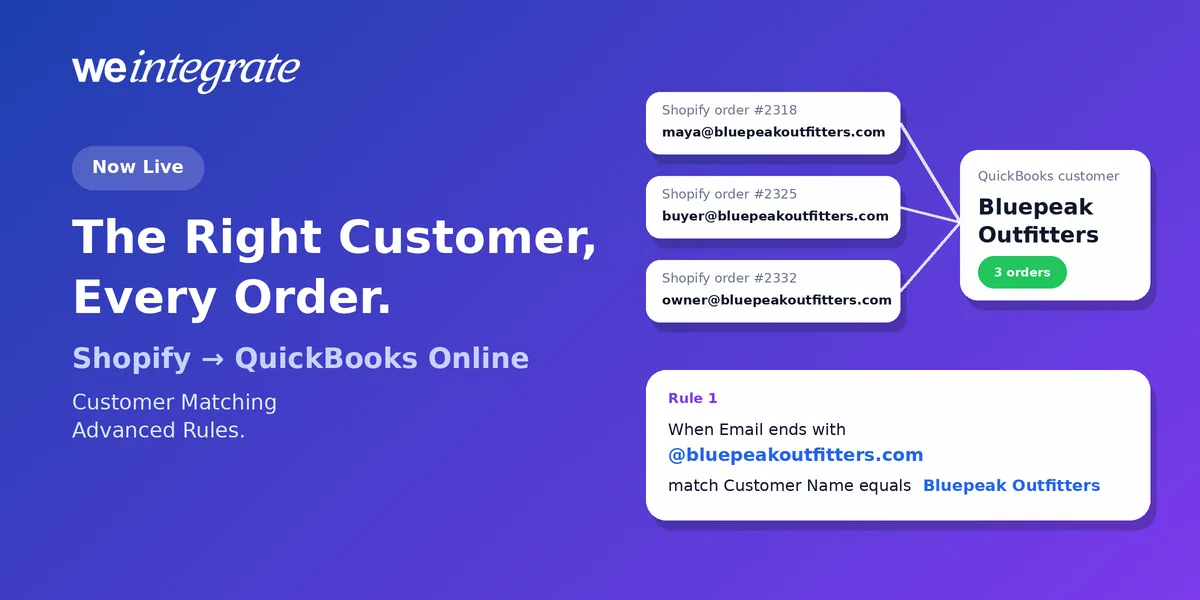
Your QuickBooks Online customer list has history. Some of it came from years of invoicing before you opened a Shopify store, some from your accountant’s naming habits, and some from the wholesale accounts that order through five different people. Shopify knows those buyers by email and name. QuickBooks knows them as “Bluepeak Outfitters” or “Harbor Café - Wholesale”. When the two don’t line up exactly, an order can land on the wrong customer — or on a brand-new duplicate. Starting today that’s solved: Customer Matching Advanced Rules are live, so every Shopify order lands on the right QuickBooks Online customer, instantly, even when the names don’t match word for word. They had been in preview with select customers since September 30, and they’re now available to every Professional and Enterprise merchant, and in every free trial.
Every Shopify order on the right QuickBooks Online customer the moment it's placed — real transactions, real customer history, reconciled to the penny.
Start Your Free TrialWhy the Right Customer Matters
With an integration that posts your sales as a daily summary or one lump sum per payout, there’s no customer to get right. There’s just a total, and with it, no customer history, no repeat buyers and no record of what a wholesale account owes you.
WeIntegrate records every Shopify order as its own real transaction on a real QuickBooks Online customer: a Sales Receipt for an order paid on the spot, or an Invoice — the bill you send — for a wholesale order on terms. That’s what lets you open a customer in QuickBooks and see every order they’ve placed, or check a wholesale account’s balance before you ship the next pallet. It all depends on putting each order on the right customer.
Standard Matching Still Does the Heavy Lifting
For most stores, WeIntegrate’s standard customer matching already gets it right. You pick a Shopify field — email, name, company or phone — and the QuickBooks field it should equal, and capital letters don’t matter. A secondary match can take a second try, and if nobody is found, WeIntegrate creates the customer for you or records the order on your default catch-all customer. Prefer one customer for the whole channel? One default catch-all customer (bulk) is still a click away.
Standard matching also gains three new QuickBooks choices: Company Name, FirstName LastName and LastName, FirstName. They help when you created customers in QuickBooks yourself and their display names don’t follow the shopper’s name. QuickBooks doesn’t require these to be unique, so picking one shows a reminder that two customers, such as two John Smiths, can share them. Like advanced rules, they may need a one-time preparation on your account first; contact our support team and we’ll switch them on.
Advanced Rules: Matching in Plain Sentences
Standard matching compares one value exactly with one value. Advanced rules handle everything that isn’t exact. Each rule is one short sentence in two parts:
- When a Shopify customer field — email, company name, first name, last name, full name or phone — equals, starts with, contains, ends with or matches a pattern you type (or with no condition at all, for every order),
- match the QuickBooks customer whose name, company, first name, last name, email or phone equals, starts with, contains, ends with or matches the text you give, which can include the Shopify value itself.
Wildcards are simple: * means “anything here” and ? means “exactly one character”. You can add up to 10 rules for your primary match, and up to 10 more for your secondary match.
Three Rules a Merchant Might Write
1. One wholesale account, many buyers. Bluepeak Outfitters orders through its buyers, its warehouse manager and its owner, all with @bluepeakoutfitters.com emails.
When Email ends with
@bluepeakoutfitters.com, match Customer Name equalsBluepeak Outfitters.
Every one of those orders lands on Bluepeak’s account, so its balance and history stay in one place.
2. Your naming convention, applied automatically. Your bookkeeper keeps wholesale accounts as the company name followed by “ - Wholesale”.
With no condition on Company name, match Customer Name equals the Shopify value (click Use Sales Channel value) followed by
- Wholesale.
A Harbor Café order finds “Harbor Café - Wholesale” without anyone renaming anything. Use equals here rather than starts with, so it can’t also find “Harbor Café - Retail”.
3. Staff orders kept separate. Team members buy at a discount with work emails.
When Email ends with
@yourstore.com, match Customer Name equalsStaff Purchases.
Put this one first, so a staff member who also happens to buy for a wholesale account is still recorded as staff.
First Match Wins — and It’s All Predictable
For every order, WeIntegrate tries your rules top to bottom, and the first rule that finds a QuickBooks customer is used. Reorder with the up and down arrows; there are no priority numbers to juggle. If no rule finds anyone, your standard match runs, then your secondary rules and secondary match if you use them, and finally your “If Customer is not found then” setting.
Two guardrails keep it safe:
- Rules find customers; they never create them. The customer a rule points to must already exist in QuickBooks Online. A rule that finds nobody simply passes to the next.
- When more than one customer could fit. Rules that use starts with, contains, ends with or a wildcard remind you that several customers might match. Preview shows exactly which ones, and the first alphabetically by name is used — make the rule more specific and the question goes away.
See It Before It Touches Your Books
Advanced doesn’t have to mean guesswork:
- Test a value. Type an email or name and see which of your rules would apply.
- Preview. Run one rule, or all of them, and see the actual QuickBooks customers it finds — name, company, email and whether they’re active — with the one an order would get marked Used.
- Active status. After you save, the rules show “Rules activating…” for a few minutes, then Active. Until then, orders keep using your standard match, so nothing is ever left waiting.
If your account needs a one-time preparation before rules can run, the Advanced rules button tells you; contact our support team and we’ll prepare your account for you.
You’ll find them in both the setup wizard and your connection settings, and they only apply to orders synced after you save. Orders already in QuickBooks aren’t changed. The full walkthrough is in the customer matching guide, with secondary rules covered in the secondary match guide.
Fine-Grained Control, Without a Learning Curve
No other Shopify to QuickBooks Online integration we know of lets you match customers to existing QuickBooks records with pattern rules like these — starts with, contains, ends with and wildcards. Yet nothing about them is compulsory: if your standard match already works, you’ll never need to open the Advanced rules screen. If you do, you write a sentence, check it with a preview, and save.
Meanwhile the rest of your books keep running as they always have: every order a real transaction, every Shopify payout a real Bank Deposit in QuickBooks Online reconciled to the penny, and every customer exactly where you expect to find them.
Which Plans Include It
Customer Matching Advanced Rules are part of the Professional and Enterprise plans, and you can use them throughout your free trial. Standard customer matching — unique or one default catch-all customer, with the secondary match and automatic customer creation — remains on every plan. WeIntegrate supports QuickBooks Online in the US, Canada, the United Kingdom and Australia, plus the Global edition.
Get Started
Start your free 15-day trial and connect Shopify to QuickBooks Online in about 10 minutes — every order on the right customer, instantly, with a customer history you can actually use. No credit card required.
See Also
- More Control, Still Simple: Advanced Matching Rules Now in Preview — the preview this release came from.
- Nothing Charged? Keep 0.00 Shopify Orders Out of QuickBooks Online — the new Order total is 0.00 rule.
- Your Customers, Your Rules: How WeIntegrate’s Flexible Customer Matching Works — the standard matching these rules build on.
- Every New Shopify Customer Lands in QuickBooks Online Automatically — what happens when no customer is found.
- One QBO Customer for Your Entire Shopify Channel — when a default catch-all customer is the right choice.
- One QuickBooks Online Company, Both B2C and B2B — retail Sales Receipts and wholesale Invoices side by side.